Squarespace
A Squarespace popup, added through Code Injection
Squarespace has a Code Injection panel that adds code to every page of your site. PopupGenius needs one line in its Footer field. After that you design the popup in the PopupGenius editor, by describing it or starting from a template, and change it by typing.
- One line in the Code Injection footer
- Built in your site’s colors and fonts
- Email capture, discount codes and product links
Free plan: one popup, 500 views and 20 AI credits a month, with a small “Powered by PopupGenius” link. No card, and it does not expire.
How to add the popup to Squarespace
What Squarespace needs first
Squarespace’s help center lists code injection as available on the Core, Plus and Advanced plans, and on some legacy billing plans. If the Code Injection panel is not there for your site, the plan is the first thing to check.
Squarespace checkout pages do not support code, so no popup can open on the checkout page itself. A popup can still open on your cart page or when a shopper clicks the checkout button (see below).
-
1 Create a free PopupGenius account
Sign up at app.popupgenius.app with your name, email and a password, then click “Verify email” in the email you receive. The free plan is already on the account, no card.
-
2 Save your site address and copy the script tag
On the “Site” page, enter your website address under “1. Your website” and click Save. “2. Install the code” then shows your script tag. Click “Copy script”. You can type just example.com: https:// is added for you. Your tag looks like this, with your own site key in place of YOUR-SITE-KEY:
<script async src="https://cdn.popupgenius.app/p/YOUR-SITE-KEY.js"></script>The tag stays the same when you edit or publish popups, so you paste it once.
-
3 Paste it into Squarespace
PopupGenius asks for the tag just before the closing </body> tag, on every page where a popup may appear. In Squarespace there is more than one way to put it there; pick one.
Site-wide, in the Footer field
The one to use: the tag runs on every page of the site.
- Open your site and go to the Code Injection panel, under Website Tools.
- Paste the PopupGenius script tag into the Footer field. It is already wrapped in <script></script>, which is what Squarespace asks for.
- Click Save.
- Open your site in a private or incognito window to see it as a visitor does.
Squarespace’s Footer field puts code before the closing </body> tag on every page, which is exactly where PopupGenius asks for it. The Header field works too.
On one page only
Rarely needed. Page-level code injection is in the page’s settings under Advanced.
- In the Pages panel, open the page’s settings and click Advanced.
- Paste the script tag into Page Header Code Injection and save.
Usually there is no reason to: choosing which pages show the popup is a setting on the popup (URL rules), so a site-wide tag can still show the popup on one page only.
-
4 Check the installation
Under “3. Check the installation”, click “Open my site”. Back on the “Site” page, the status at the top changes to “Installed on” your address after that first visit. If it keeps saying “Waiting for the code to load”, the page you opened must be on the address you saved (www or not, but the same https and the same subdomain), and the tag must be on that page.
-
5 Create and publish a popup
On “Popups”, click “Create popup”, start from a template or describe it to the AI Designer, choose its trigger on the “Workflow” tab, and click “Publish”. A checklist at the top of “Popups” ticks off each step until your first popup is live.
The Squarespace steps follow Squarespace’s own help articles, read on . Menus move, so check there if a label has changed: Squarespace Help Center: Customize parts of your site with code injection
If the editor preview misbehaves
Squarespace can switch scripts off inside its own editor preview when injected code gets in the way of editing (“Disable Scripts in Preview”). That changes nothing for visitors. To see the popup, open your site’s address in a private window, which is also what Squarespace suggests.
Register the address your visitors use
A PopupGenius account has one website address, and popups load only on pages of that address. If your site has its own domain, register that one; example.com and www.example.com count as the same site. A different address of the same site, such as the built-in Squarespace one, is a different address and will not show the popup.
Saving the address also reads the colors and fonts of its home page, so the AI Designer’s first draft already matches your Squarespace template.
What a Squarespace site usually puts in a popup
A newsletter signup with a welcome code, a link to a new collection or a booking page, and a time-limited offer with a countdown. Signups land on the “Leads” page in PopupGenius with the page and traffic source each came from, ready to download as a CSV file or send to Zapier, Make or your CRM by webhook.
On a Squarespace store
PopupGenius cannot see or change a Squarespace cart. A product in the popup shows what you enter, and its button opens the product page, where the shopper buys as usual. The popup does not add to the cart, its price is display only, and purchases are not counted: the numbers are views, emails captured and clicks.
Adding to the cart, charging the popup’s price at checkout, purchase numbers and cart conditions are features of the PopupGenius Shopify app only.
What a popup can do on Squarespace
Squarespace runs PopupGenius as a website account. The editor, the templates and the AI Designer are the same as in the Shopify app; what differs is everything that needs a store’s cart.
Works on Squarespace
- An email signup form, with an optional first name and phone, that shows your discount code after signup
- Every signup on the “Leads” page with the page and traffic source it came from, as a CSV download or sent to Zapier, Make or your CRM by webhook
- Products with your image, price and badge, whose button opens the product page you entered
- Exit intent, timer, scroll and custom-event triggers
- Countdowns, show-once rules, a teaser bubble, and where it shows set by URL rules and device
- Multi-step flows, A/B variants and translations on paid plans
- Views, emails captured and clicks on the “Analytics” page
Only in the Shopify app
- The popup button adding the product to the cart
- Checkout charging the price the popup showed
- Purchase and revenue numbers
- Conditions on the cart (cart total, a product in the cart)
Running a Shopify store? See the Shopify app.
Popups at add to cart and checkout on Squarespace
Exit intent, timer, scroll and custom events work as soon as the tag is on the page. The “Add to cart” and “Start checkout” triggers need one more step, because PopupGenius cannot see your cart: tell it what those moments look like under “Advanced: cart and checkout detection” on the “Site” page. Until you do, the editor hides those two triggers.
- Request pattern
- Part of the address your site calls when a product is added. The popup opens only after a successful add.
- Add to cart button selector
- A CSS selector for your add to cart buttons. The popup opens on the click, before the add completes.
- Cart page path
- The path of your cart page. The popup opens when a shopper arrives there.
- Checkout button selector
- A CSS selector for your checkout buttons. The popup opens on the first click; when it closes, checkout continues.
For “Cart page path”, open your cart and copy the path from the address bar; the popup opens when a shopper arrives there. Since checkout pages run no code, “Checkout button selector” (the button on your cart page) is the moment to catch them before checkout.
Popup templates for your Squarespace site
Six of the templates in the PopupGenius gallery. Apply one, then change the words, colors and offer by typing.
-
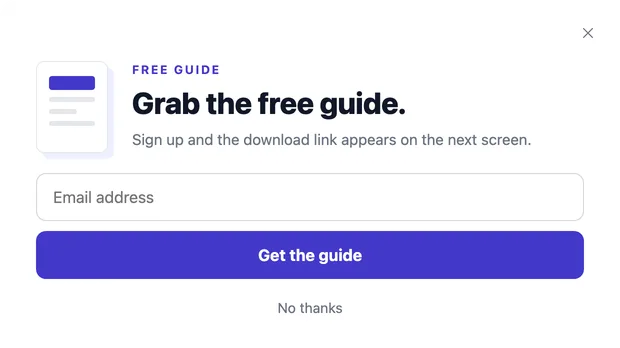
Collect emails
Lead Magnet
Offers a free guide for an email address, then shows the download link.
-
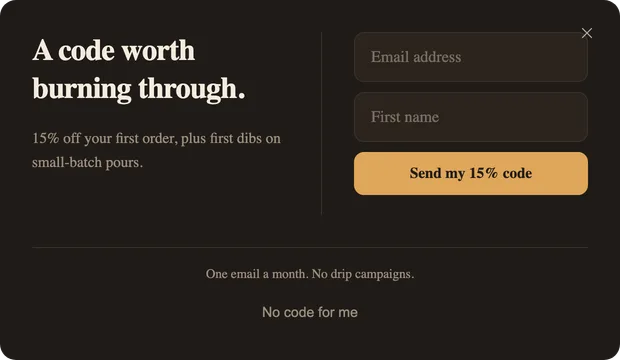
Trade a code for an email
First Flame — Code Reveal
Asks for an email and a first name, then shows the discount code.
-
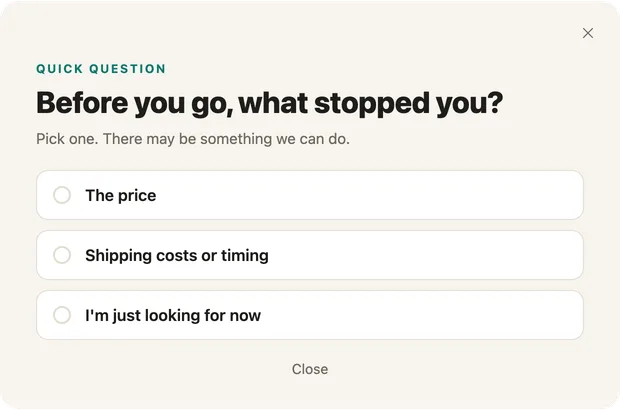
Catch someone leaving
Exit Survey
Asks what stopped them. On a paid plan each answer opens its own next screen.
-
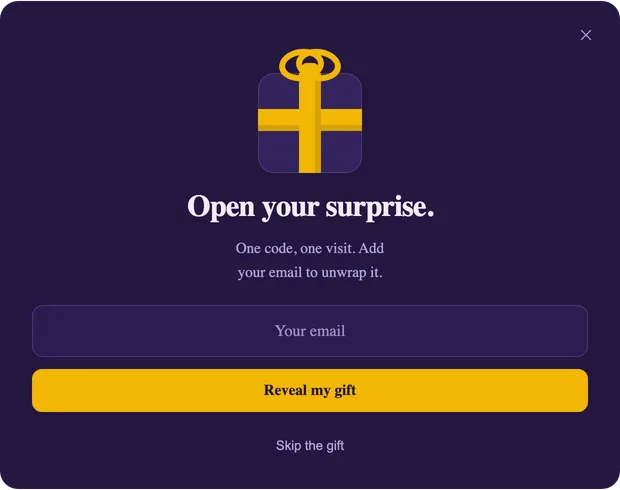
Make it a game
Mystery Gift
A wrapped gift that opens to a code once the visitor leaves an email address.
-
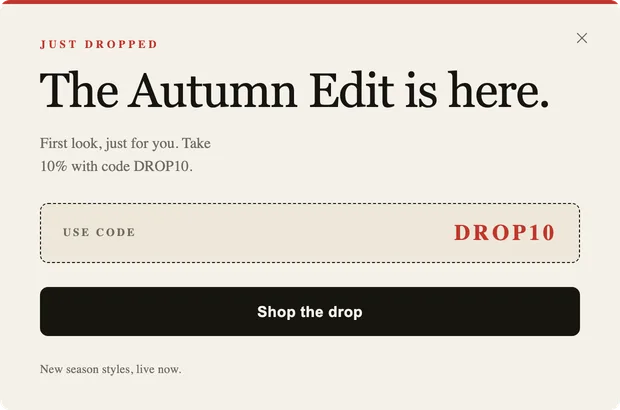
Announce something
The Drop
A new collection, a code to copy, and a button to the page it is on.
-
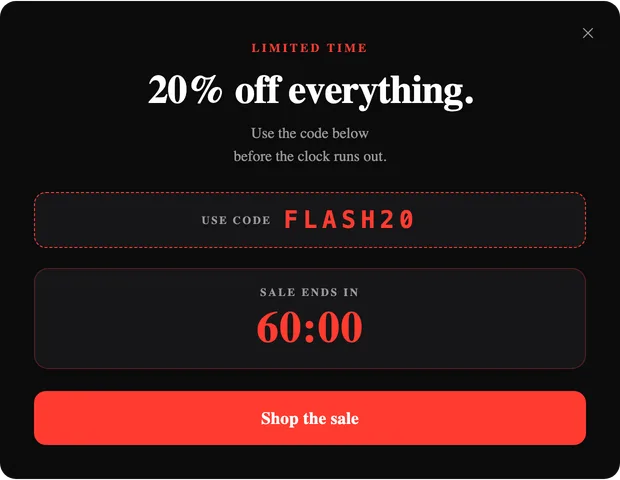
Run a sale
Flash Hour
A sale code and a countdown to the end of the offer, with one button to shop.
Start free, pay when the popup has a job
The free plan is not a trial that runs out. It stays free, with one popup and a small badge on it.
Free
$0.00/mo
1 popup with 1 step, 20 AI credits and 500 popup views a month, with a small PopupGenius badge on the popup. Upgrade when you need more.
Starter
$9.99/mo
7-day free trial- 5,000 popup views a month
- 100 AI credits a month
- Unlimited popups and steps
- No PopupGenius badge
Growth
$19.99/mo
7-day free trial- 25,000 popup views a month
- 300 AI credits a month
- Unlimited popups and steps
- No PopupGenius badge
Pro
$39.99/mo
7-day free trial- 100,000 popup views a month
- 900 AI credits a month
- Unlimited popups and steps
- No PopupGenius badge
Every paid plan includes unlimited popups, unlimited steps and A/B variants, translations, and no PopupGenius badge. Your first paid plan starts with a 7-day free trial. You pick one inside the app when the free plan runs out; there is nothing to choose now.
Questions about popups on Squarespace
- Which Squarespace plan do I need?
- Squarespace lists code injection on its Core, Plus and Advanced plans and some legacy plans. PopupGenius itself starts on its free plan.
- Header or Footer field?
- Footer. It puts the tag before the closing </body> tag on every page, which is where PopupGenius asks for it. Header also works.
- Why don’t I see the popup in the Squarespace editor?
- Look at the live site in a private window. The editor preview can have scripts switched off, and a popup also only opens when its trigger fires and it is published.
- Can the popup open on the checkout page?
- No. Squarespace checkout pages do not run added code. Use the cart page or the checkout button instead.
- Can the popup add a product to my Squarespace cart?
- No. The button opens the product page you entered. Cart add and checkout prices need the Shopify app.
- Is there a free plan?
- Yes, and it does not expire: 1 popup with 1 step, 20 AI credits and 500 popup views a month, with a small PopupGenius badge on the popup. Upgrade when you need more. Paid plans start at $9.99 a month, and your first paid plan starts with a 7-day free trial.
Put your first popup on Squarespace
Create the account, paste the tag, describe the popup. The free plan is enough to see it working on your own site.
On another builder: WordPress · Wix · Webflow · Exit-intent popup · Email popup