How these examples were made
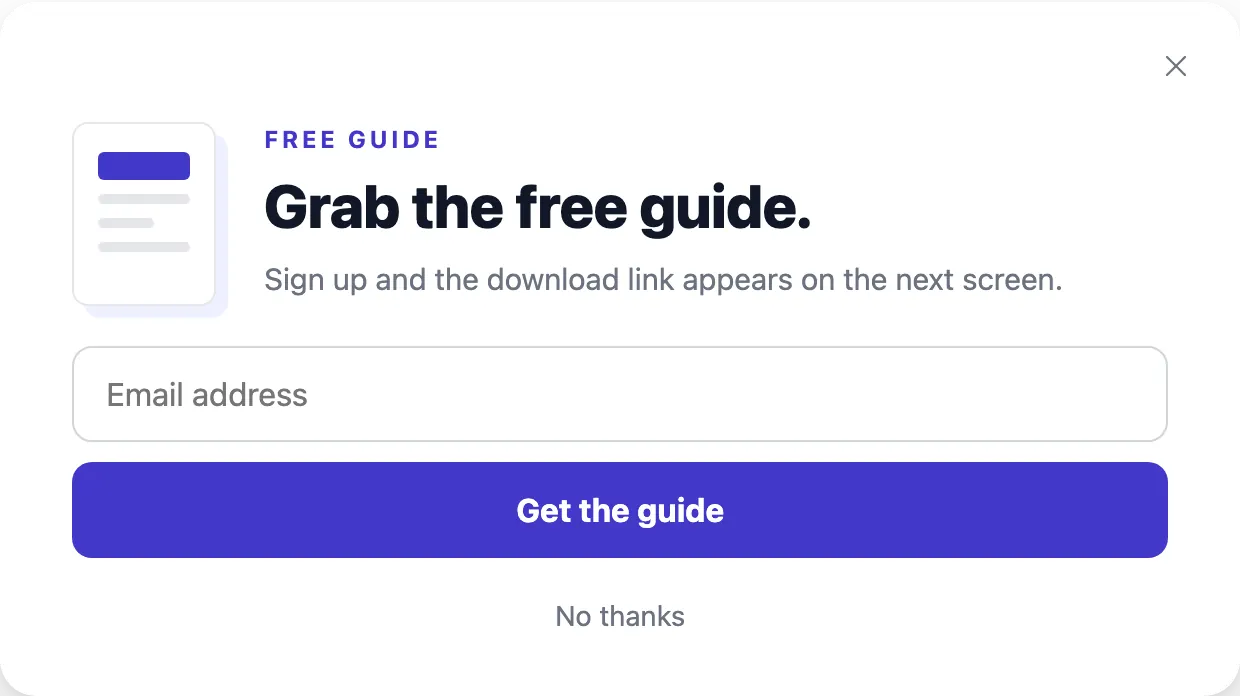
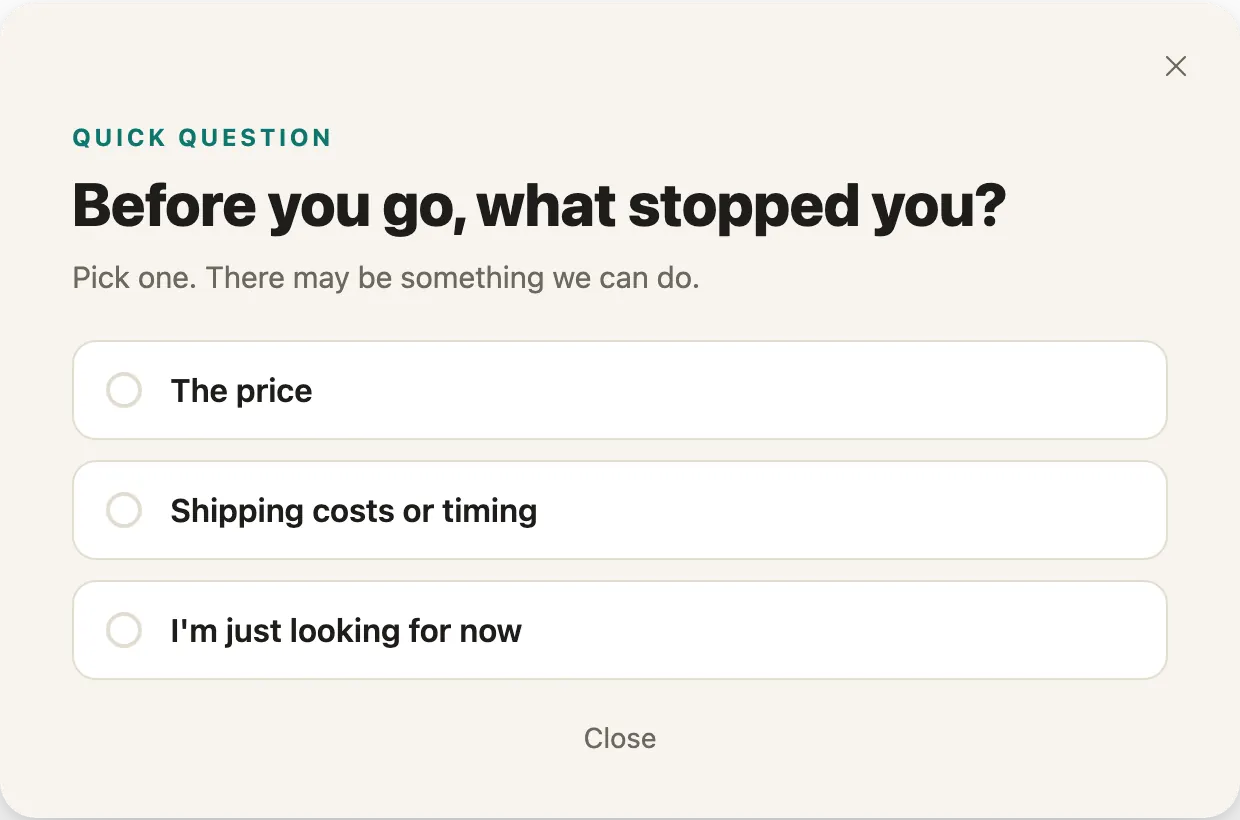
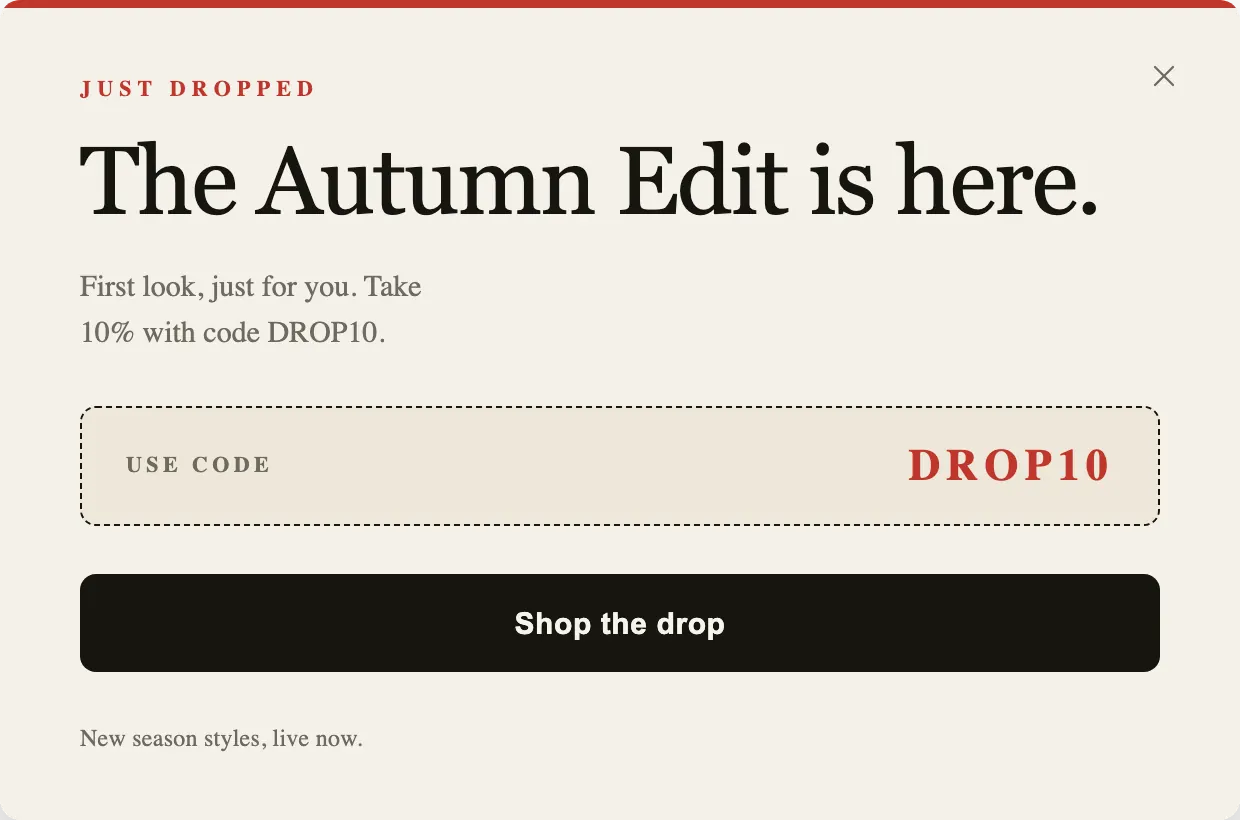
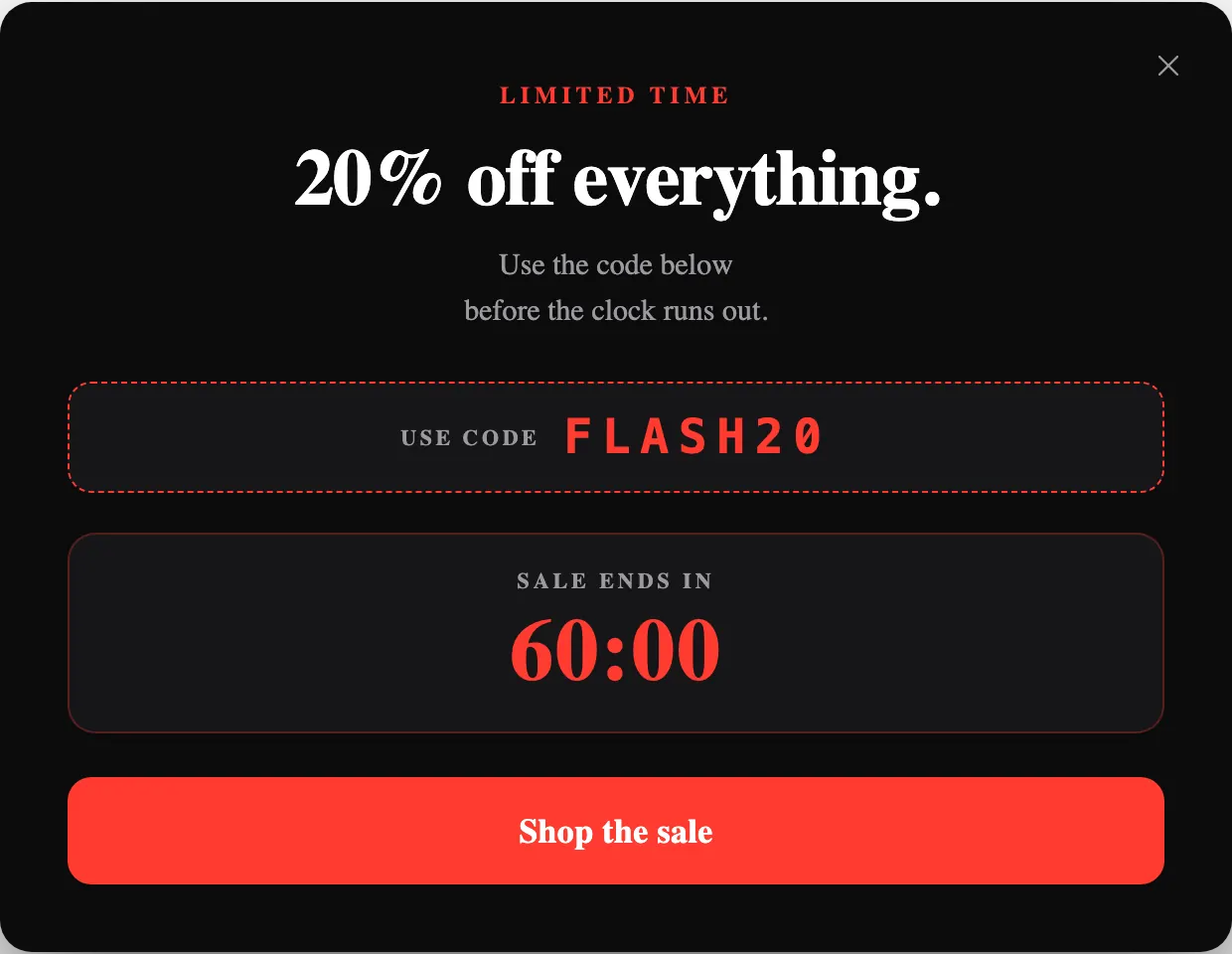
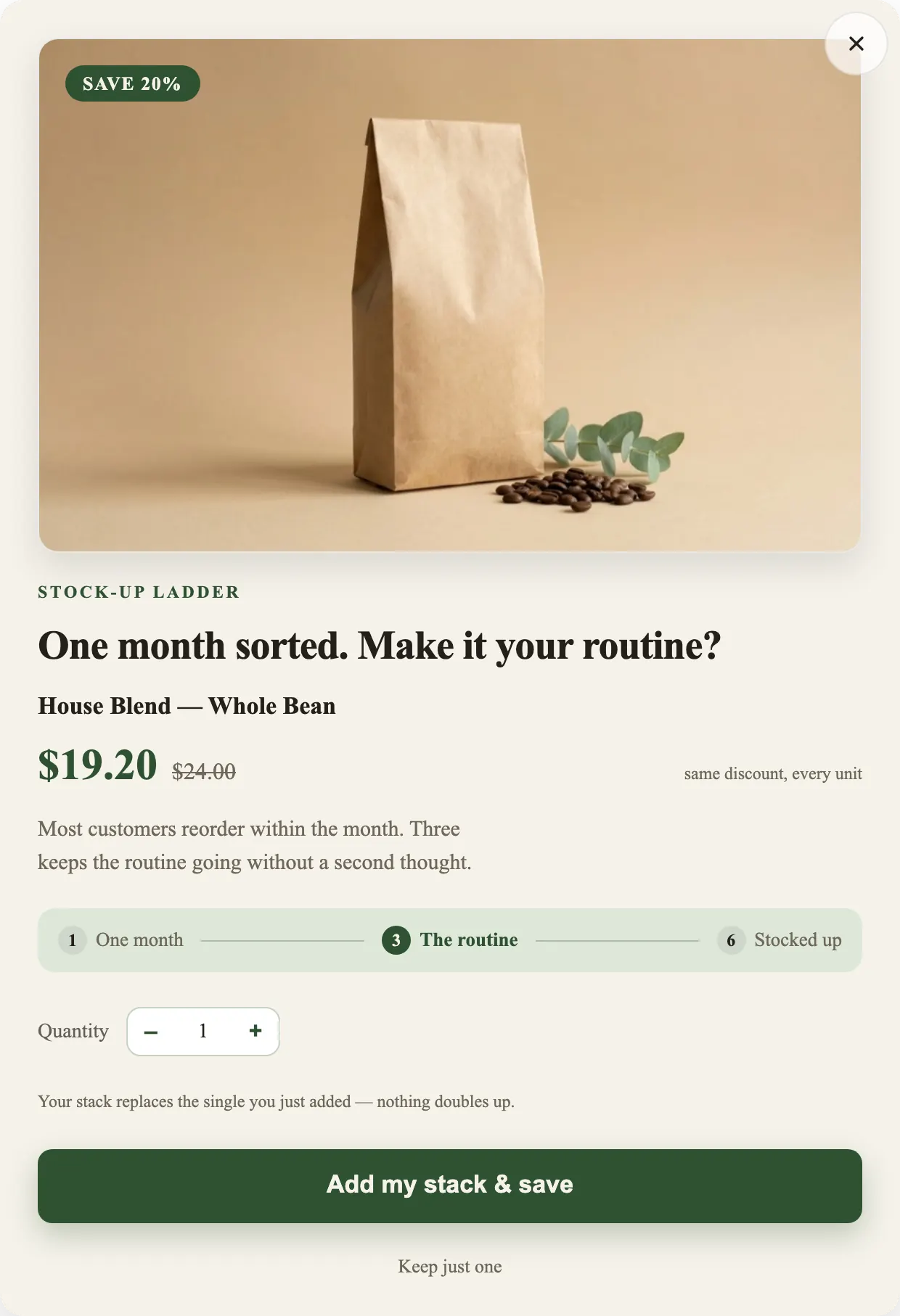
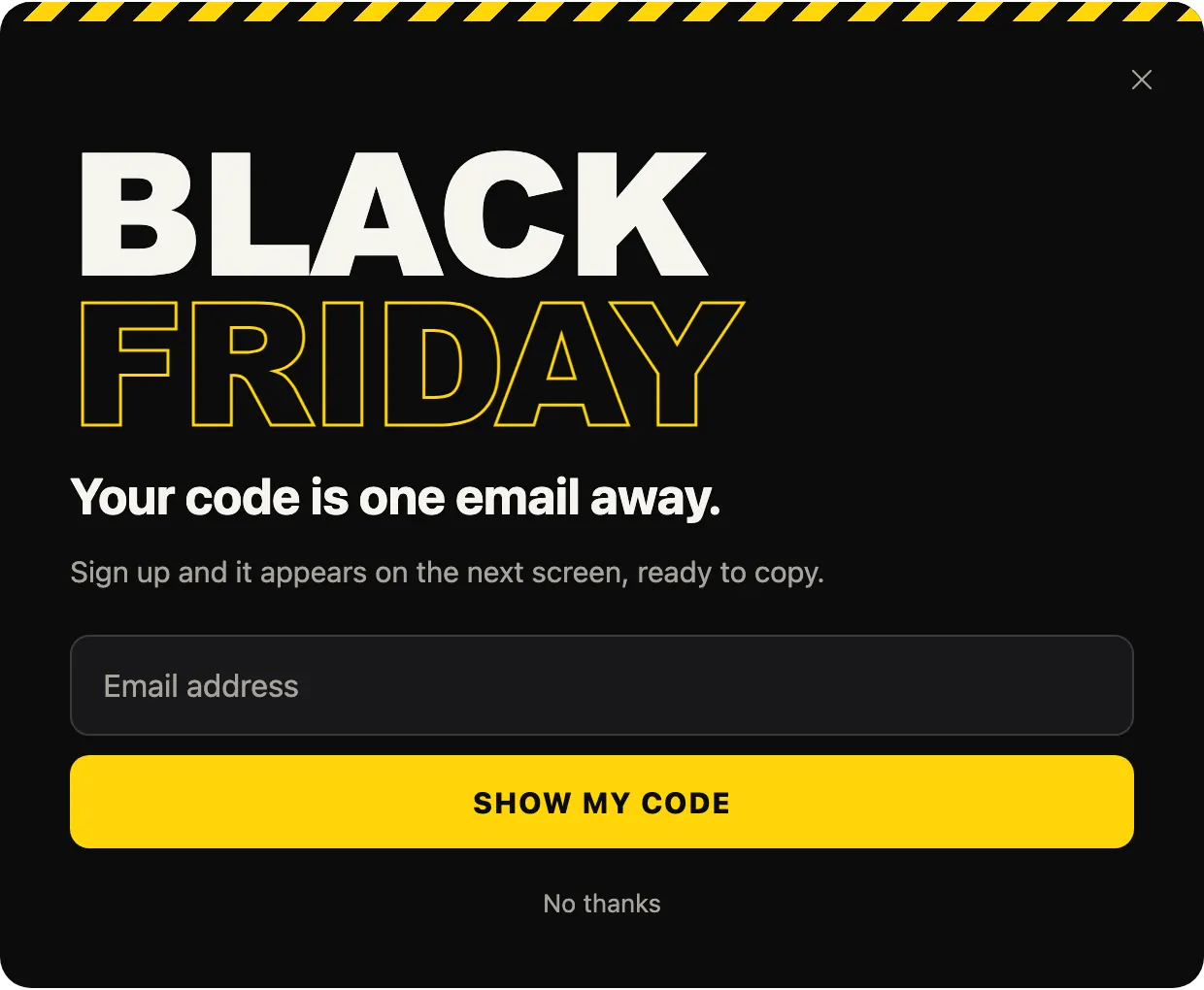
Every picture is a template from the PopupGenius gallery, rendered by the same pipeline the editor uses, so it is what you see after applying it. Nothing has been retouched or mocked up. The text, products and discount codes are the template’s samples: WELCOMEBACK, FLAME15 and the rest are examples to replace with codes that exist in your shop.
Some templates appear on more than one page, because one popup can do more than one job. First Flame collects an email address, opens on exit intent and reveals a discount code, so it is an email, an exit-intent and a discount example at once. Each page says why it is there.
From example to live popup
- Apply the template from the gallery in the editor. A new popup opens with the gallery already showing.
- Change the words, colors and offer by typing in the AI chat, or field by field in the Settings tab.
- Check the trigger on the Trigger card in the Workflow tab. Every built-in template opens on a 5-second timer, beside the trigger it was made for.
- Publish. On a website the popup runs from one script tag; on Shopify, from the app embed in your theme.