Three jobs for one weekend
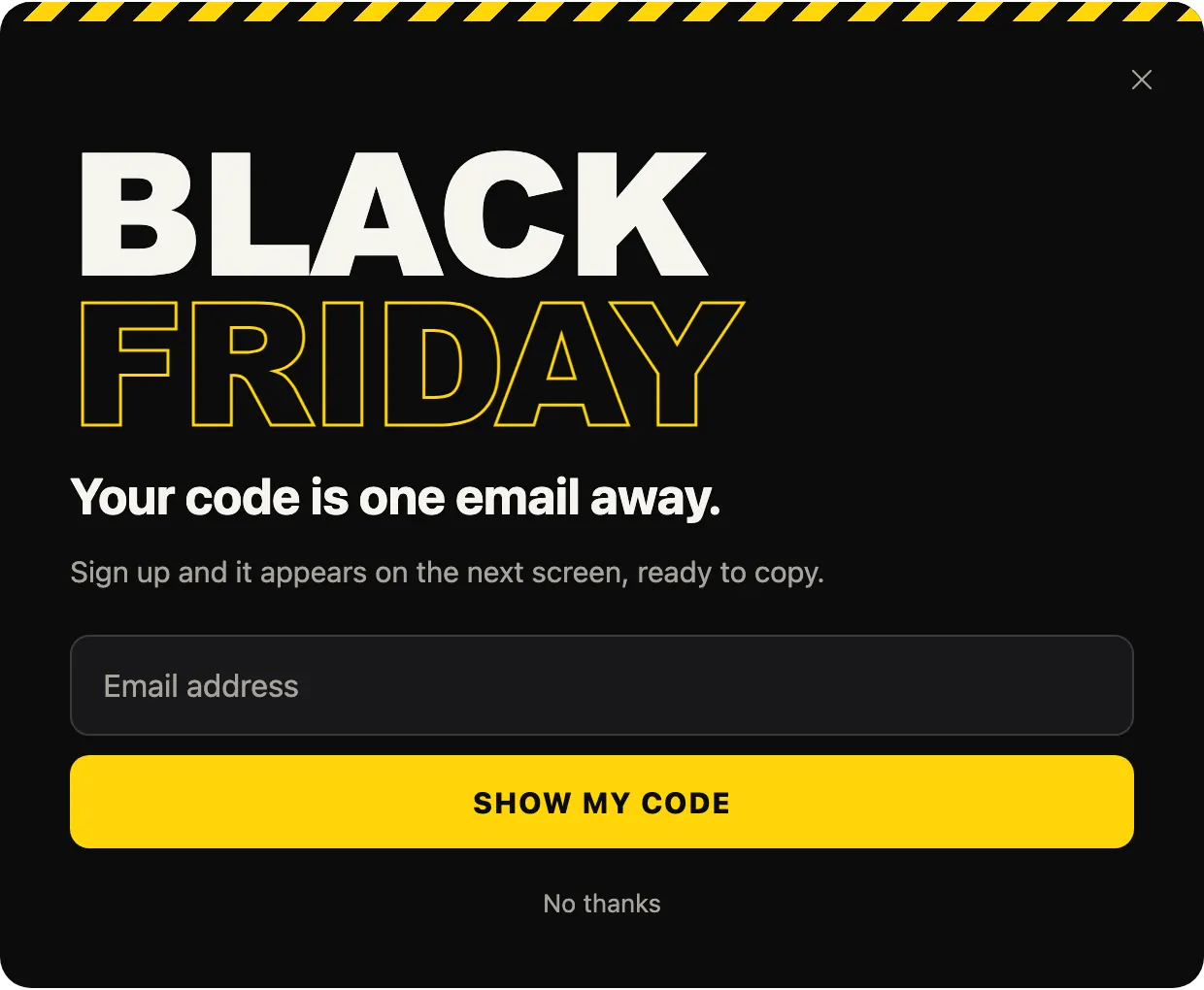
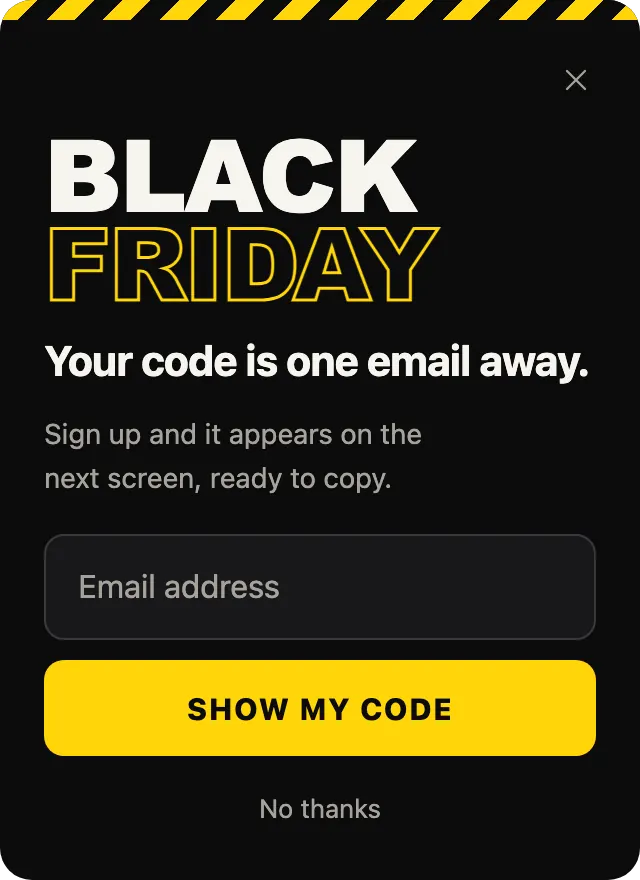
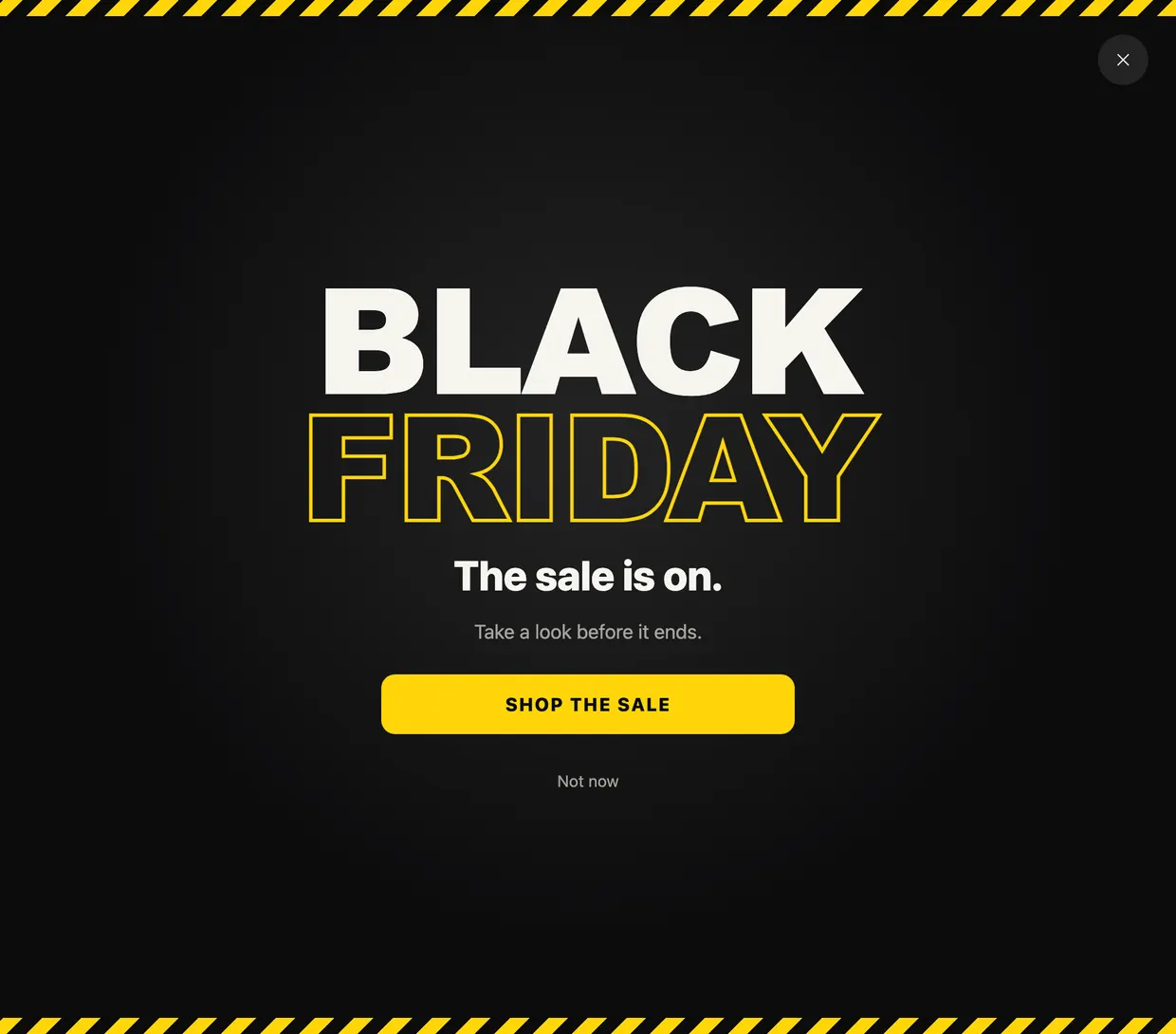
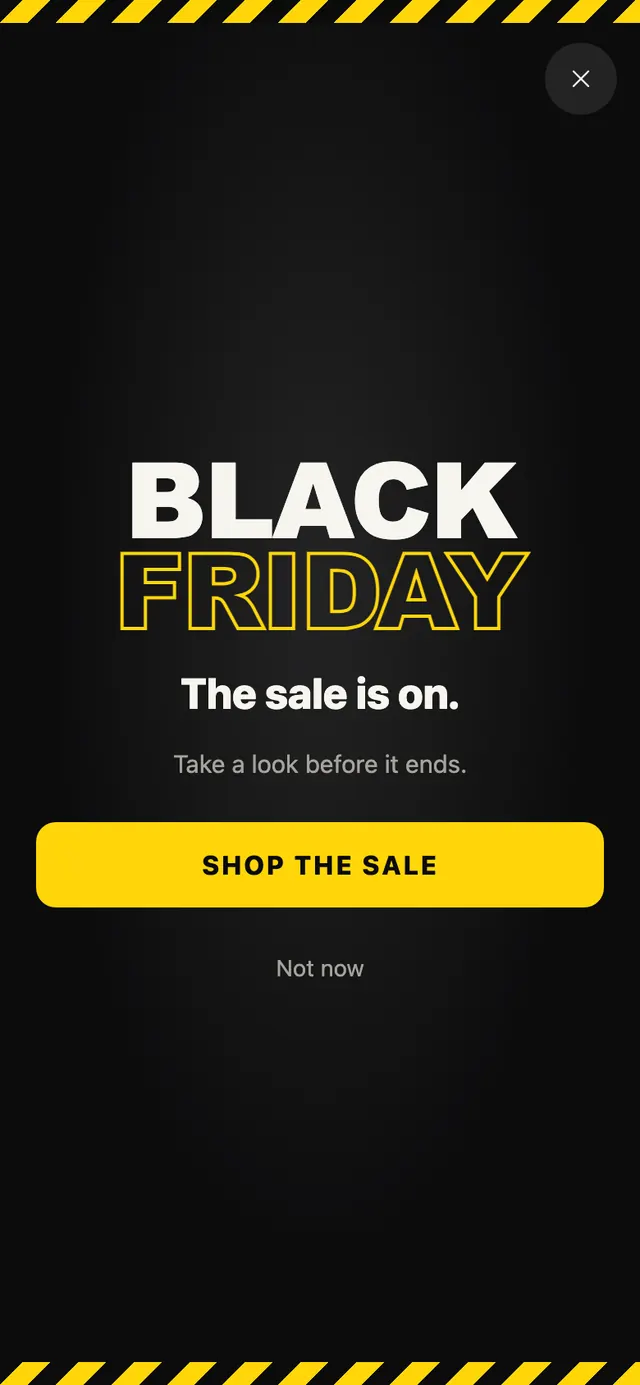
Black Friday popups usually do one of three things, and the templates map to them. Tell everyone the sale is on: Black Friday Takeover. Turn sale traffic into addresses you can write to later: Black Friday Code. Help people who are shopping for someone else: Black Friday Gift Quiz.
They share a look on purpose, so you can run more than one without them clashing. One way to combine them: the takeover on the home page for the first visit and the code popup on exit intent elsewhere. PopupGenius arms only one popup per page view, so use Visibility in the Workflow tab to give each its own pages, and frequency settings so a returning visitor is not shown the takeover every time.
When each one opens
All three are set up to open for every visitor, not only an empty or a full cart. Every built-in template opens on a timer 5 seconds after the page loads; Black Friday Code adds exit intent, and Black Friday Gift Quiz adds a scroll halfway down the page and exit intent. Change any of it on the Trigger card in the Workflow tab.
Remember that exit intent needs a mouse. On phones the timer or the scroll trigger is what opens the popup, so keep one of them on.
Design: loud is fine, unclear is not
Sale design can be loud. These templates are: heavy type, a black field, a yellow button. What keeps them usable is that each still has one headline, one button and a visible way out (“Not now”, “No thanks”, “Just browsing”). Keep that when you change the words. If you want them in your own colors, ask the AI chat to match your brand, or use Color Overrides in the Settings tab.
- Put the offer in words: “Your code is one email away.” says what the form is for.
- Send the button somewhere specific. The takeover’s Shop the sale needs your sale page address in its Sale page link field; while it is empty, the button just closes the takeover.
- Write the dates and the discount the way your sale page writes them, so the popup and the page agree.
A clock with a real end
A sale weekend has a calendar end, which is what the “Ends on a fixed date” timer type is for. Add a countdown timer to any of the three, set the date and time your sale ends, and every visitor sees the same deadline, with days shown while more than a day is left. When it reaches zero, the popup closes for everyone and does not come back, so a forgotten Black Friday popup cannot keep running into December.
The gift quiz, step by step
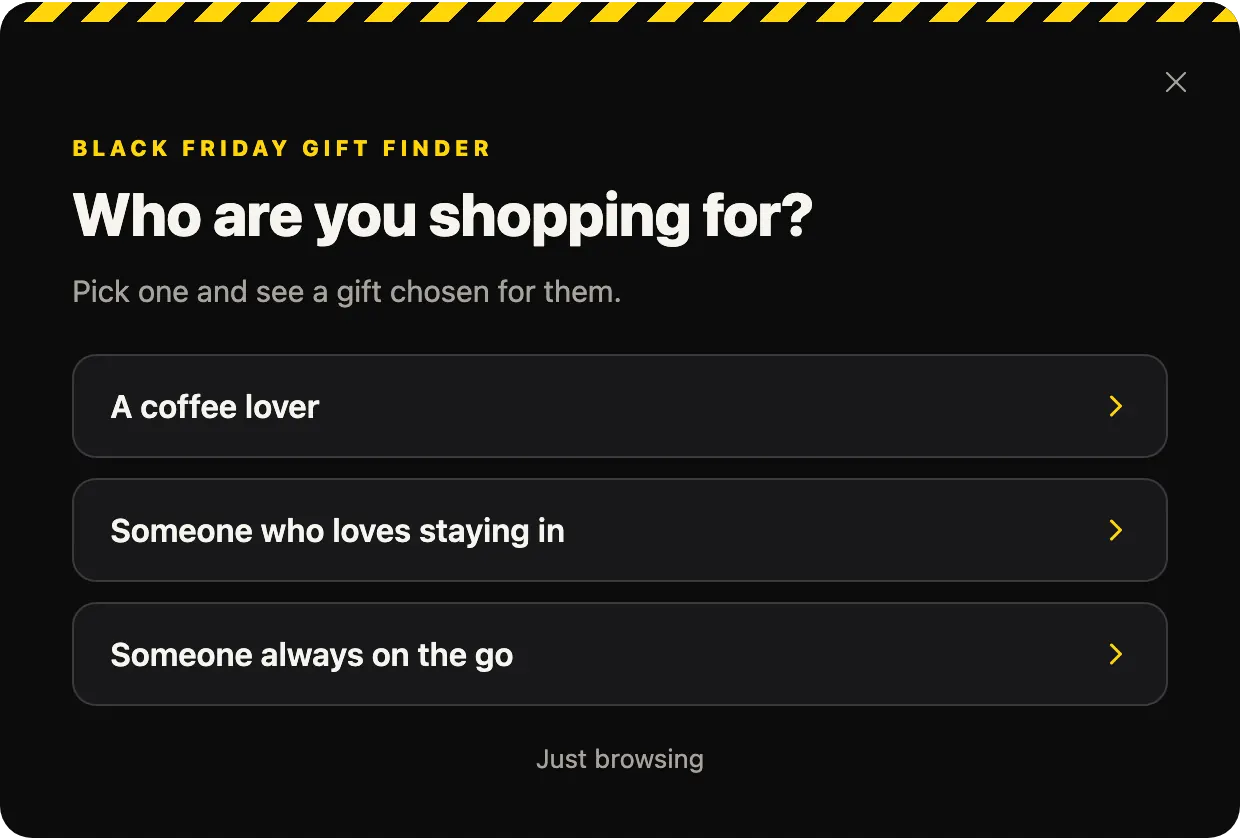
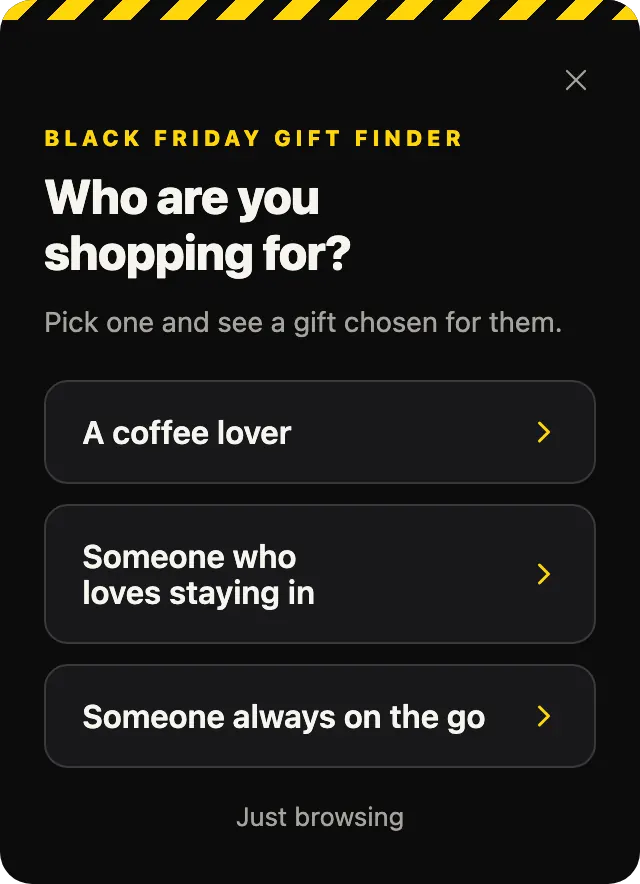
Black Friday Gift Quiz is the one template here that is a small flow rather than a single screen. The first step asks “Who are you shopping for?” with three answers: a coffee lover, someone who loves staying in, someone always on the go. Each answer opens its own step with one product and a 20% offer, and “Pick someone else” goes back to the question.
Write the answers for your own customers: the three kinds of people your shop actually sells gifts to. In the Shopify app “Add to cart” adds the product and goes to the cart. On a website it opens the product page link you enter, so the 20% has to exist on that page or as a code the popup shows.
Before the sale starts
- Create your Black Friday code where your shop handles discounts, then replace the example code BLACKFRIDAY under Lead capture.
- Give each quiz answer its own product under Products in the Settings tab, one step at a time.
- Check the plan: the takeover is one step and works on the Free plan. The code popup shows its code in the same step on Free; the quiz’s product steps need a paid plan.
- Publish a few days early and look at it on your own phone and laptop.
More on the feature itself: Black Friday popups for any website.