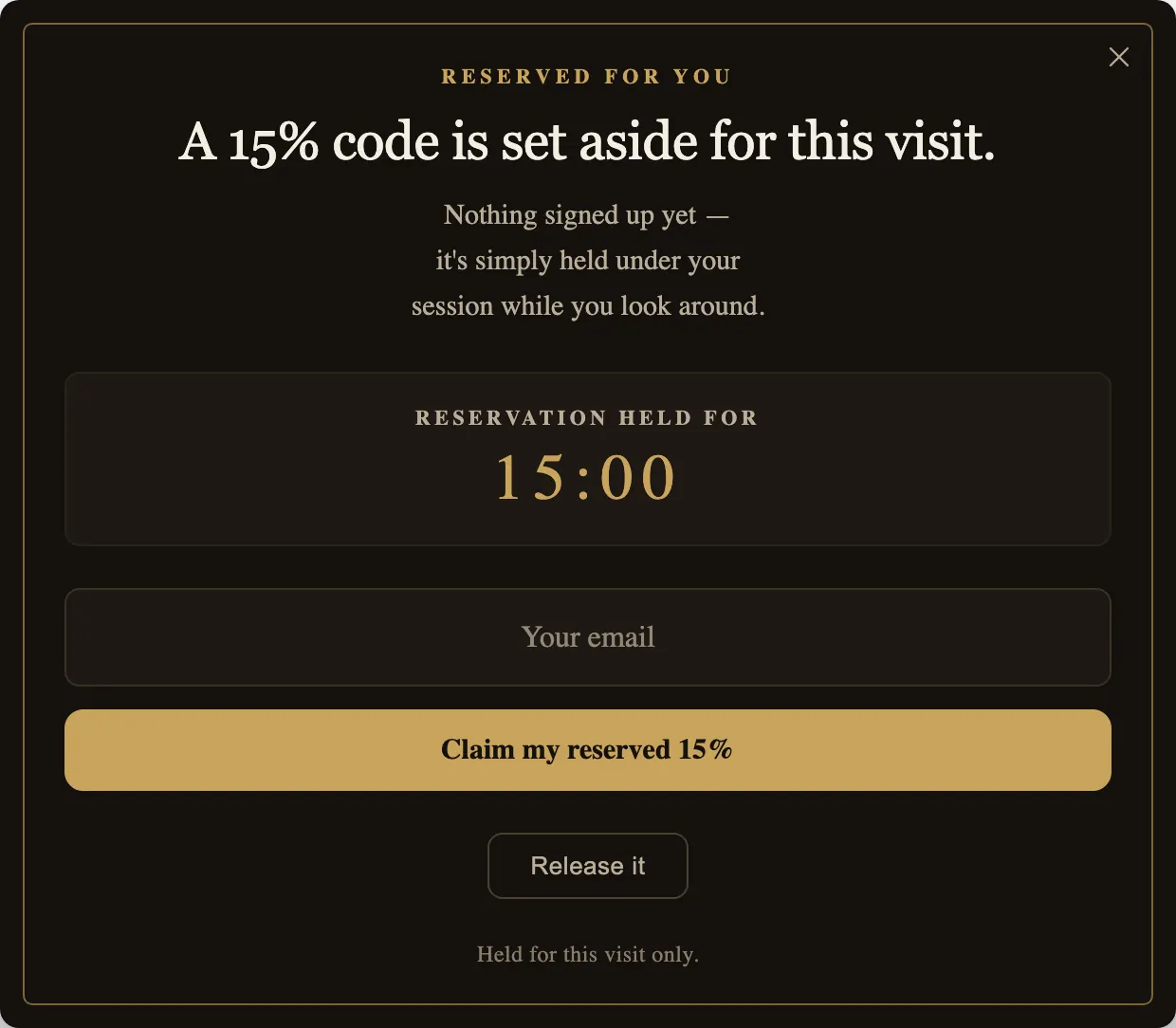
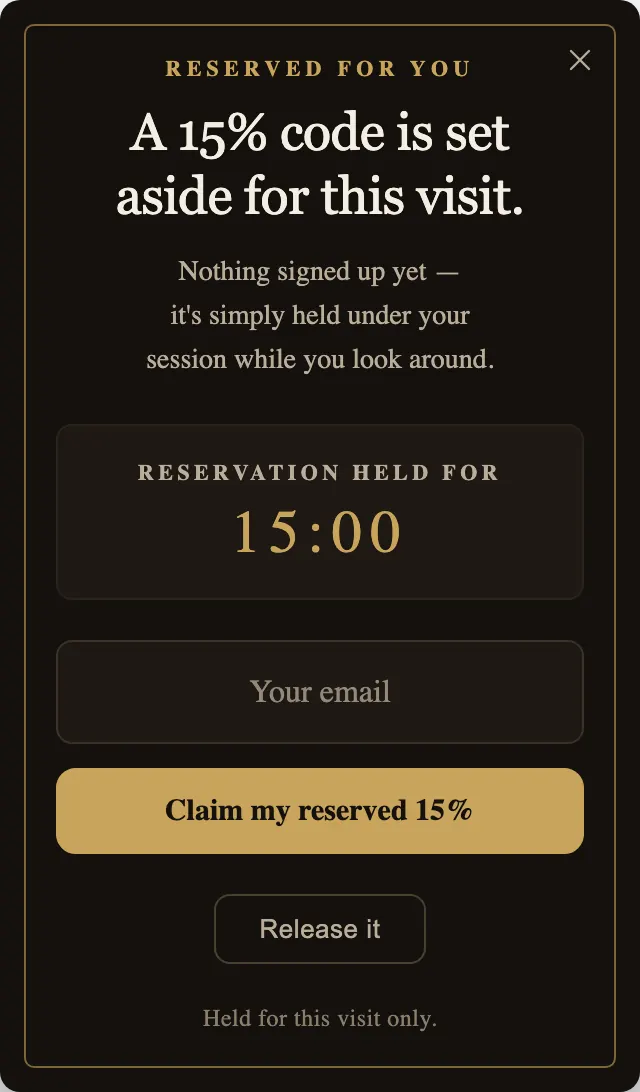
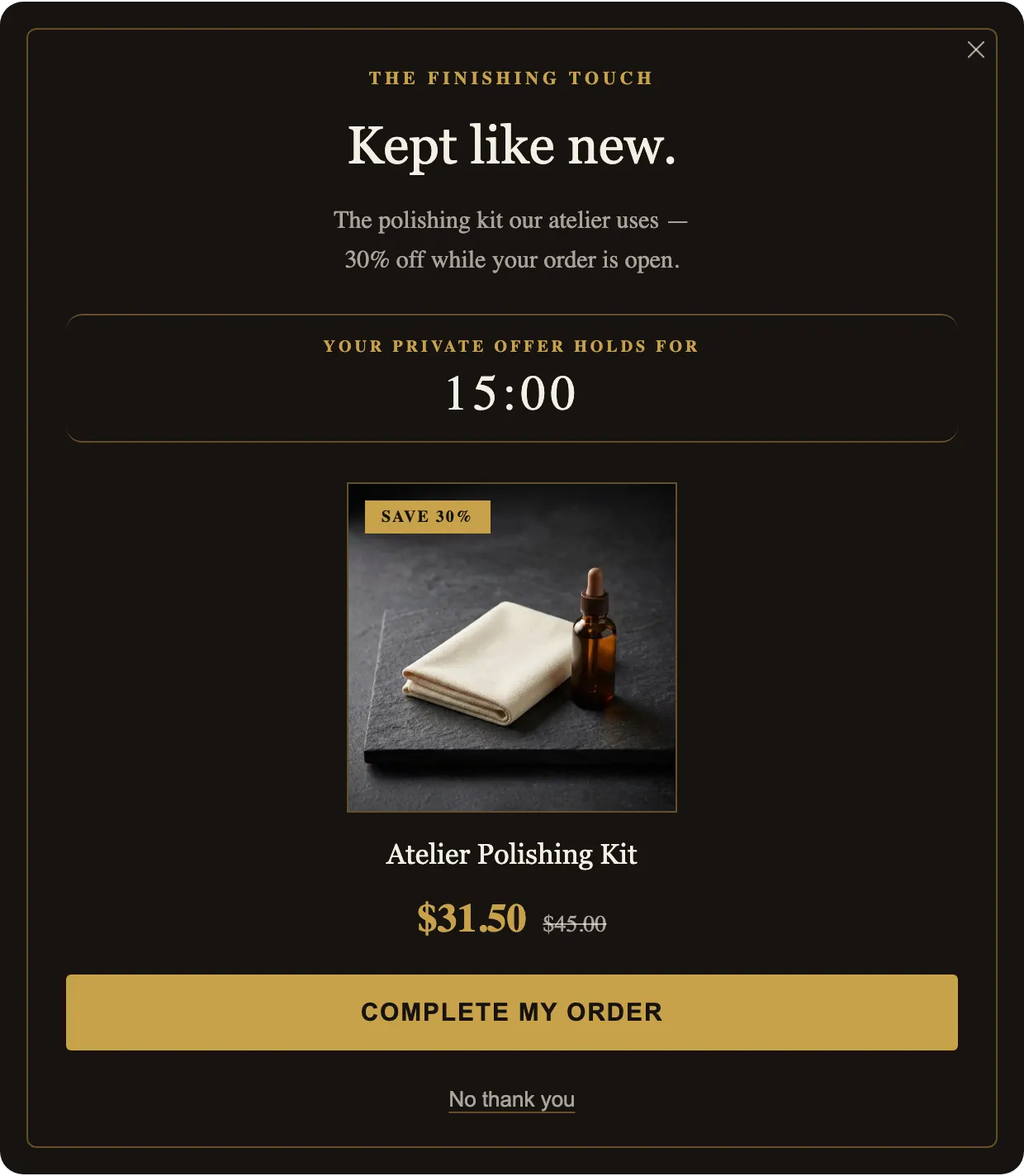
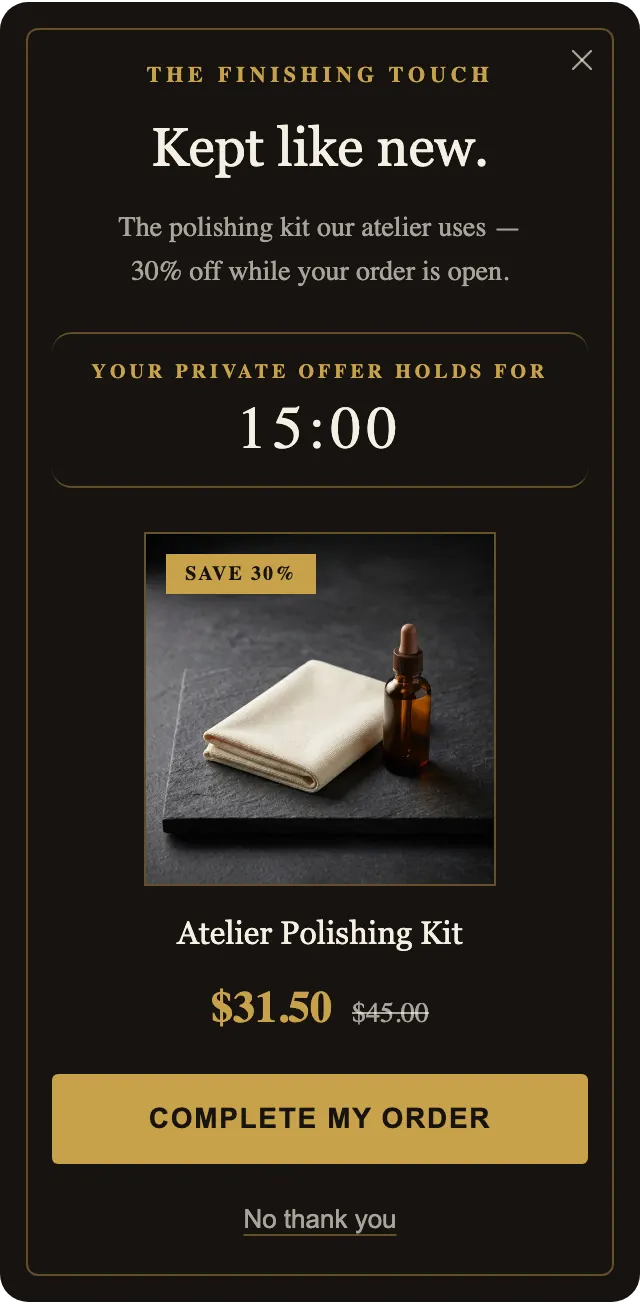
How the timer behaves
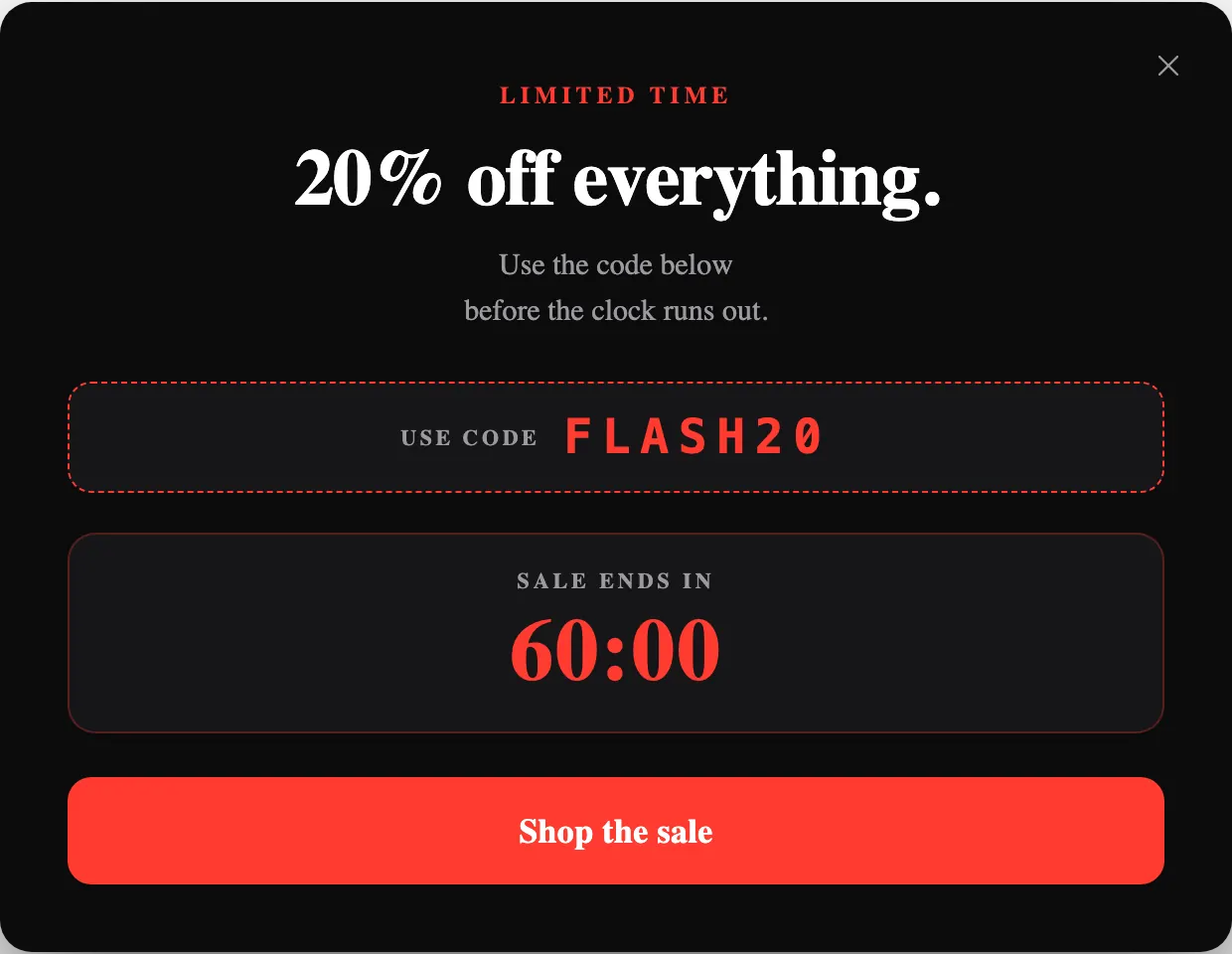
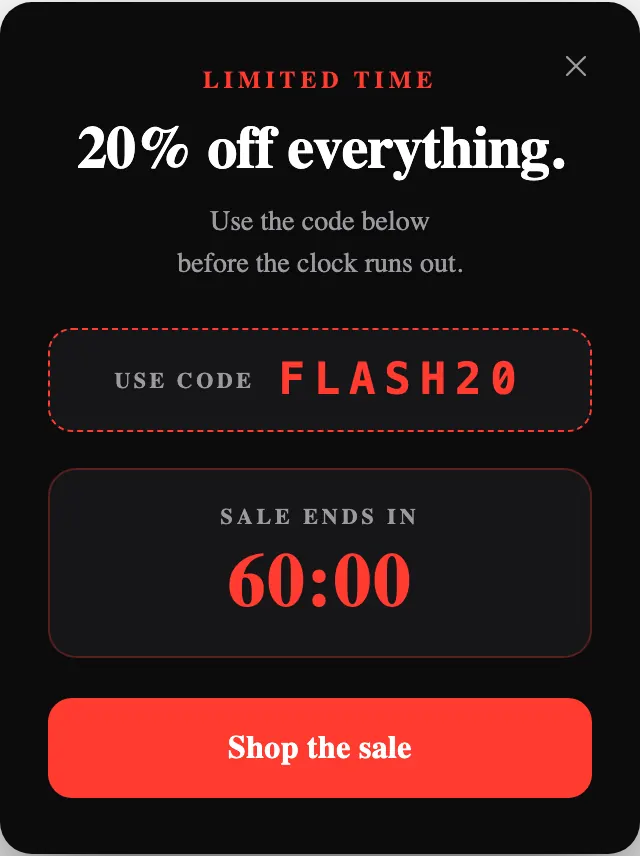
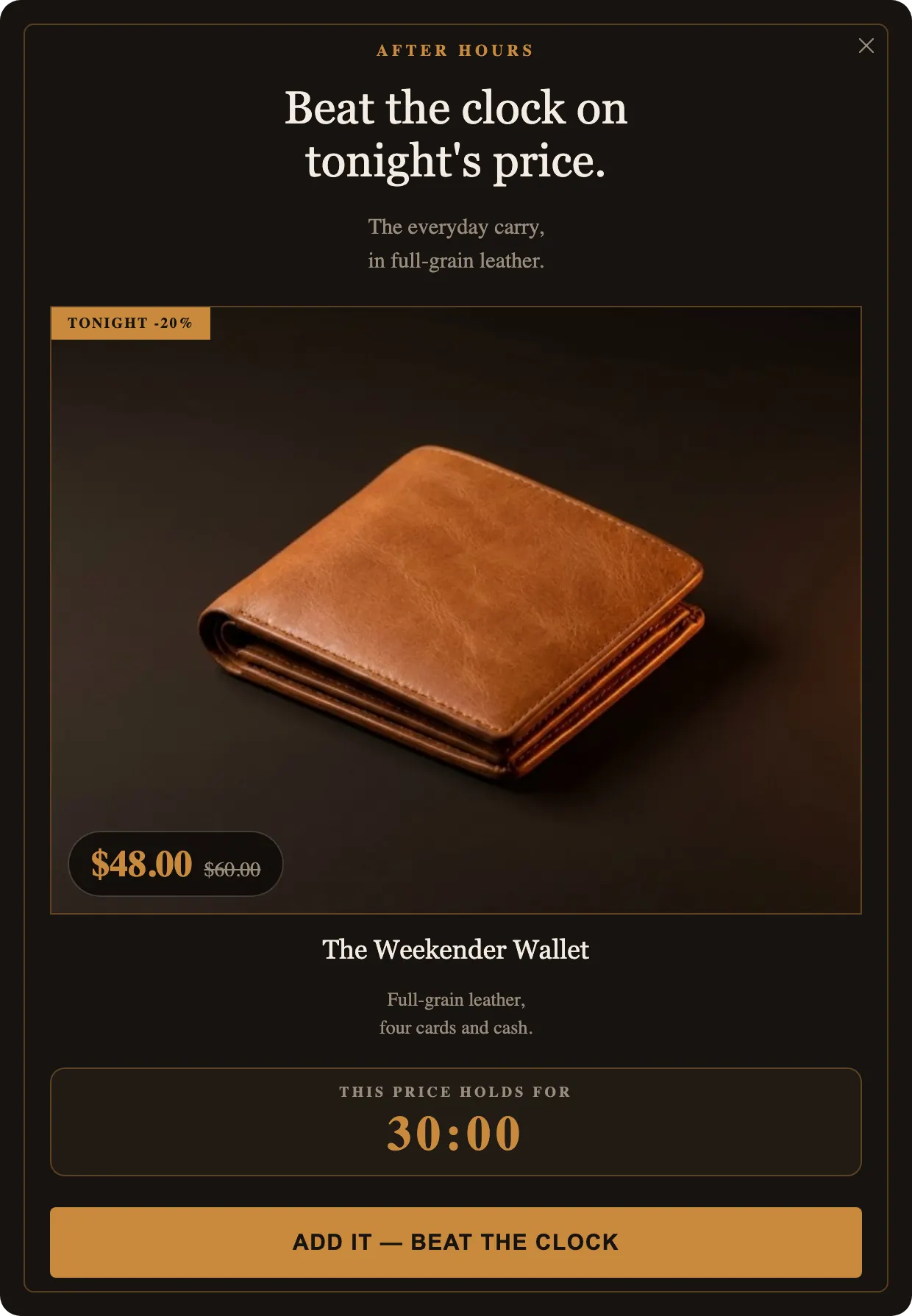
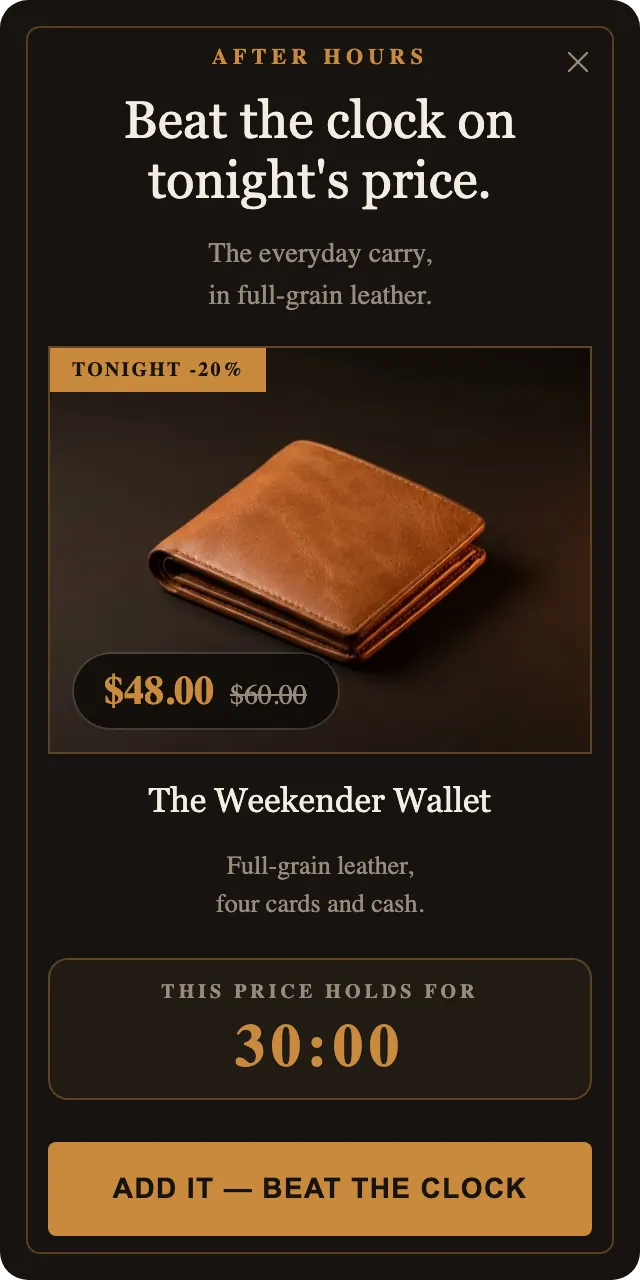
The countdown timer is a setting, not a picture: tick “Show a countdown timer” under Countdown timer in the Settings tab and it is added to the popup, as a label and the time left. The templates above come with it already on: Flash Hour at 60 minutes, Ends Tonight at 30, Reserved for You and Gilded Hour at 15.
There are two timer types. “Starts for each shopper”, the default, gives every visitor their own clock from the first time they see it. The deadline is kept in their browser, so reloading, changing pages or coming back later shows the time actually left; it never restarts at full time by itself. “Ends on a fixed date” counts down to a date and time you pick, the same moment for everyone, and shows days while more than a day is left. Use it for a sale with a calendar end.
When the clock reaches zero the offer is over: the popup closes and is not shown again, to that visitor for a per-visitor clock and to everyone for a fixed date. That is fixed and cannot be changed, which is the point. A timer that keeps going after zero is a timer nobody believes.
Only count down to something real
A countdown is a statement: after this, the offer is gone. Set it to a limit your shop actually enforces, such as the code’s expiry, the end of the sale, or the hour your price goes back up. If the code will still work tomorrow, leave the clock off and say what the code is worth instead. Visitors who see the same “15:00” on every visit learn to read every clock as decoration.
Match the label to what ends. Flash Hour says “Sale ends in”. Ends Tonight says “This price holds for”. Reserved for You says “Reservation held for”. The label is the one line that explains why there is a clock at all; leave it empty and it reads “Offer ends in”.
Design: the clock supports the offer
In each example the offer is still the headline and the clock sits below it, in its own band. The visitor should first see what they get and only then how long they have. A clock bigger than the offer reads as pressure without a reason.
By default the timer sits at the end of the popup’s content; some templates put it in a set place. To move it, ask the AI chat, for example “put the timer above the button”. The chat can also add or remove the timer, and a duration in the message, such as “add a 10-minute countdown”, sets the duration too.
Clocks in a multi-step popup
In a popup with several steps, the timer is shown per step, and the clock does not restart between them: someone who moves from step 1 to step 2 sees the same time left. Gilded Hour uses this to put the clock only on its second step. The Free plan shows visitors the first step only, so a clock on a later step needs a paid plan; the timer itself works on every plan.
Limits worth knowing
- A per-visitor deadline lives in the visitor’s browser. On another device or browser, or after they clear their site data, the clock starts again.
- If a browser does not allow sites to store data, a per-visitor popup is shown without the timer rather than with one that restarts on every page.
- Ends Tonight and Gilded Hour offer a product. In the Shopify app the button adds it to the cart at the offer price; on a website it opens the product page link you enter, so the price on that page is the one that counts.