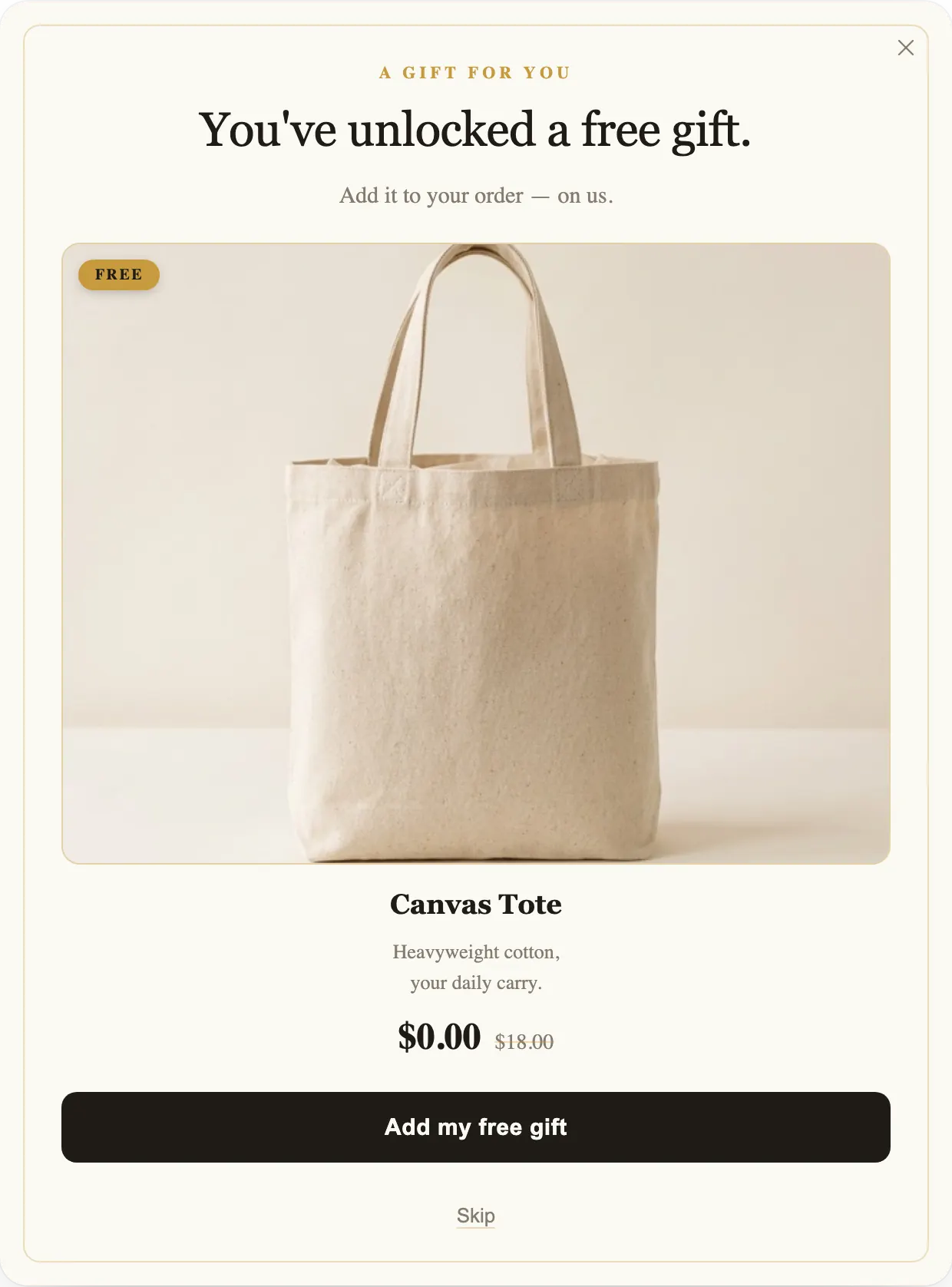
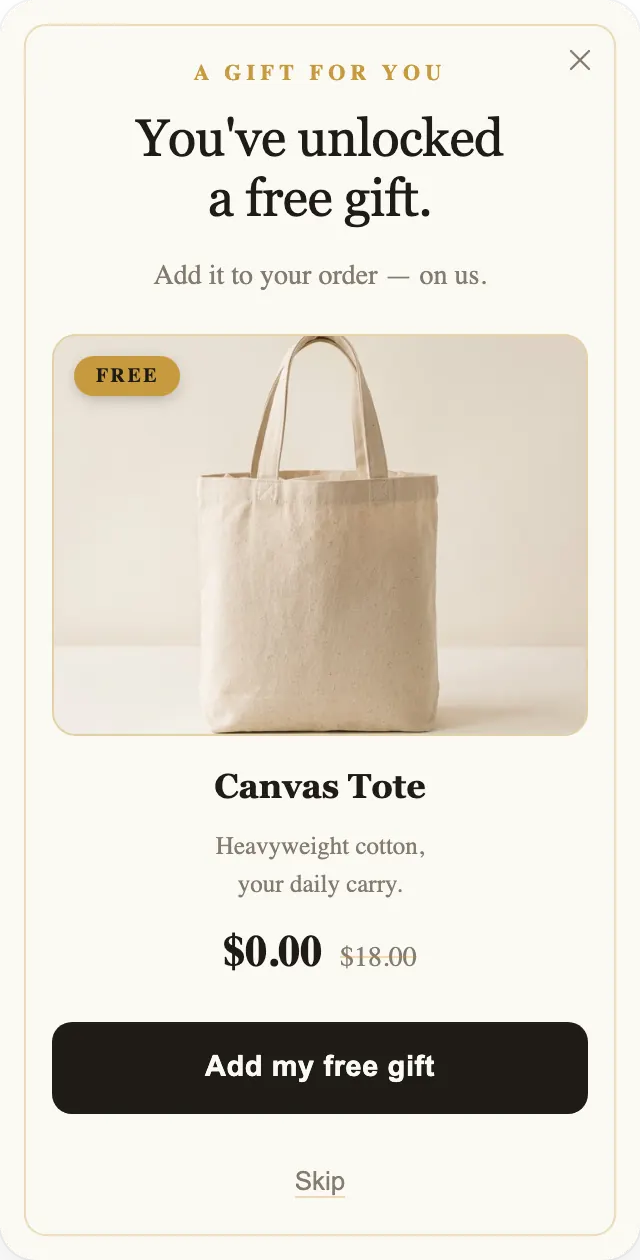
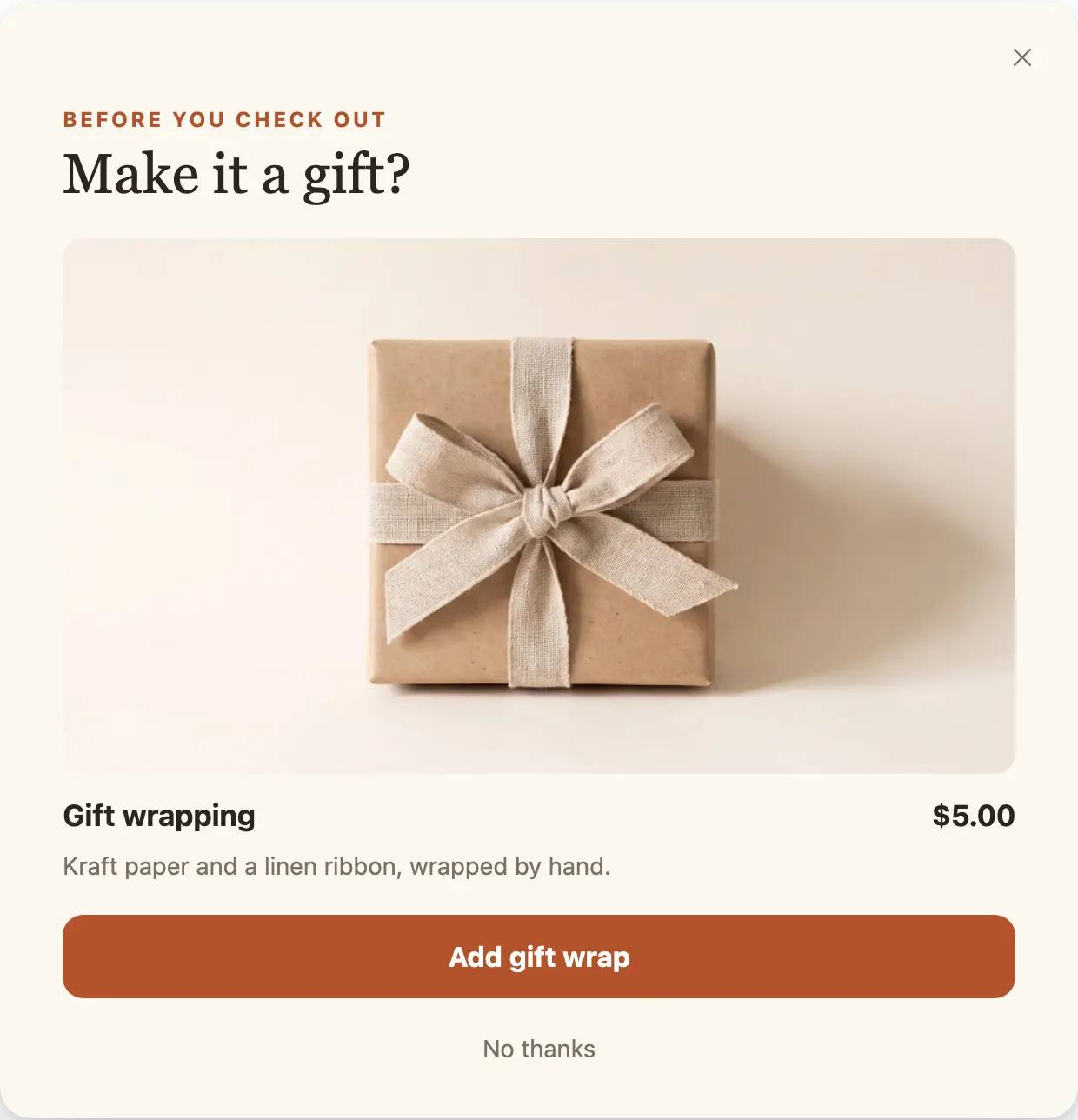
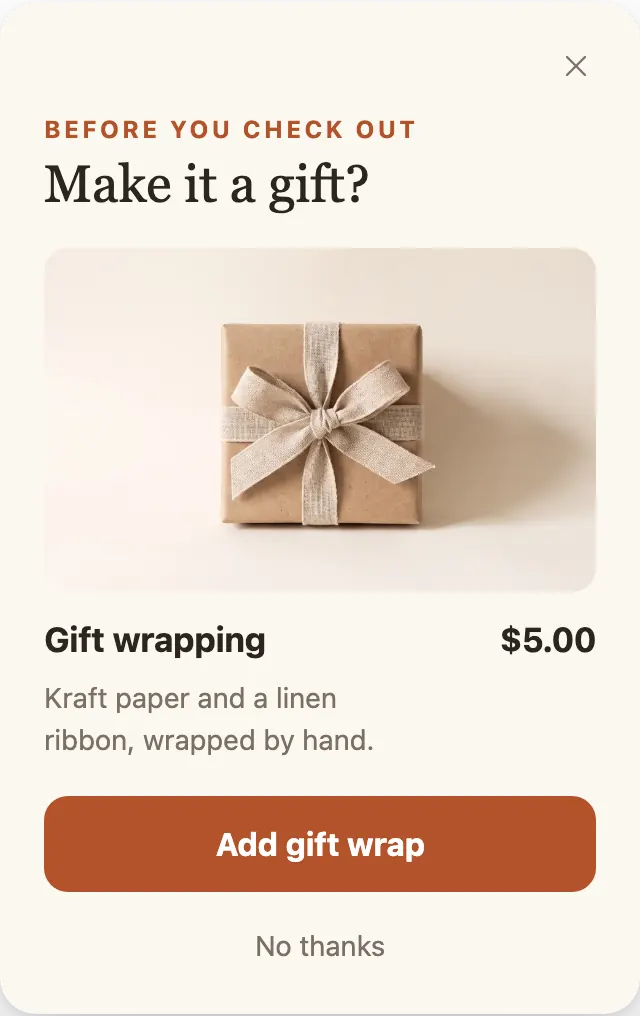
An upsell answers the next question
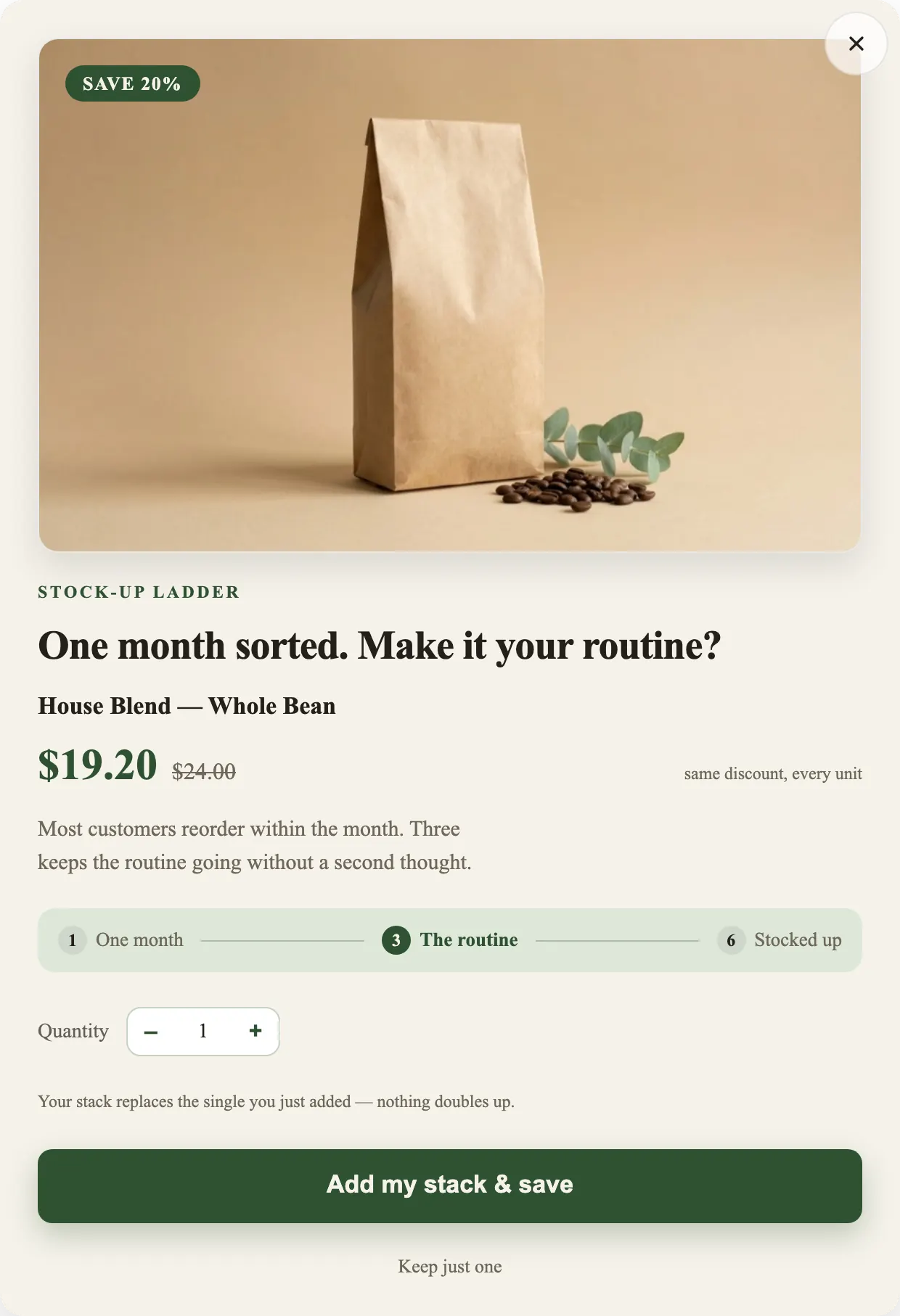
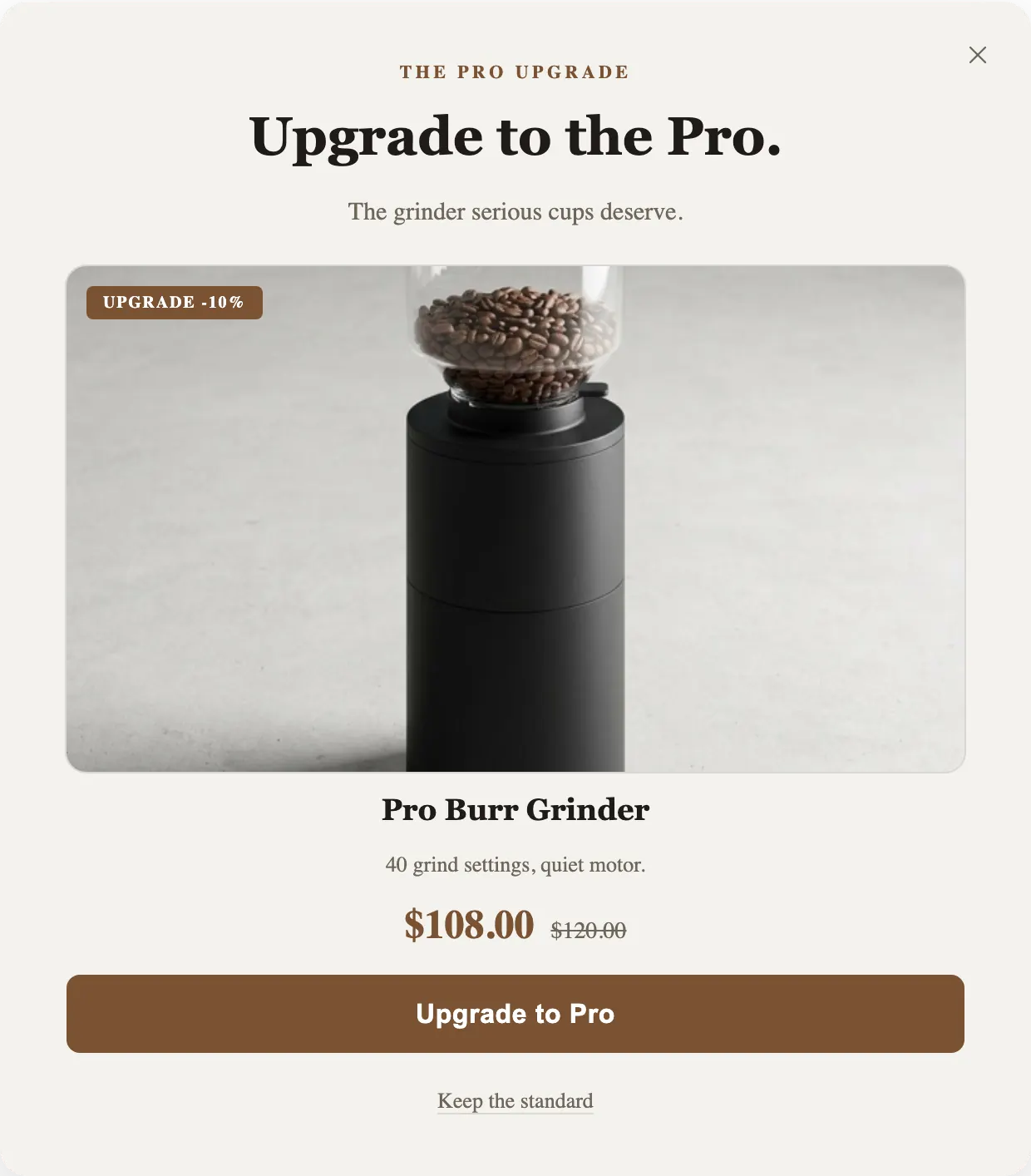
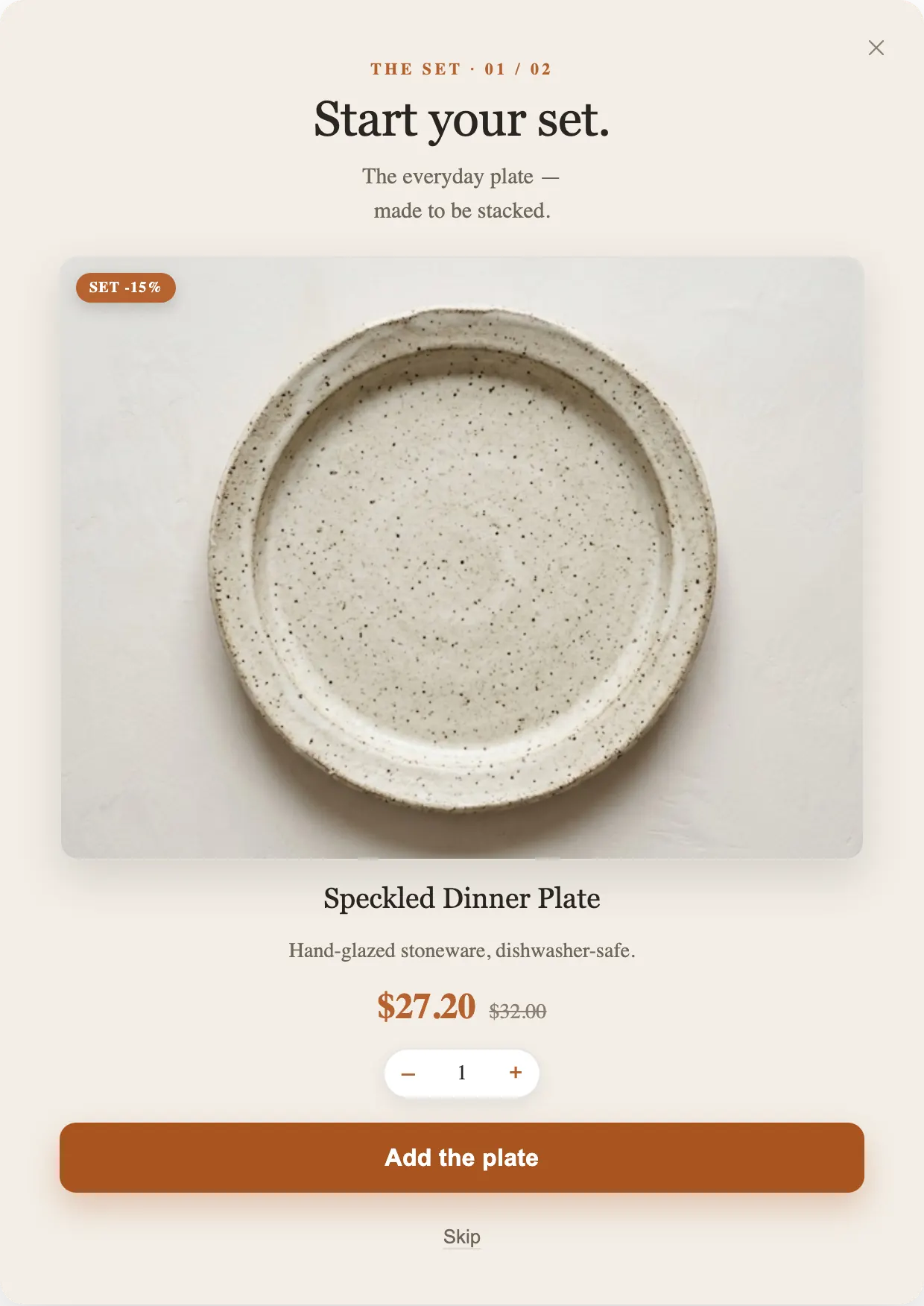
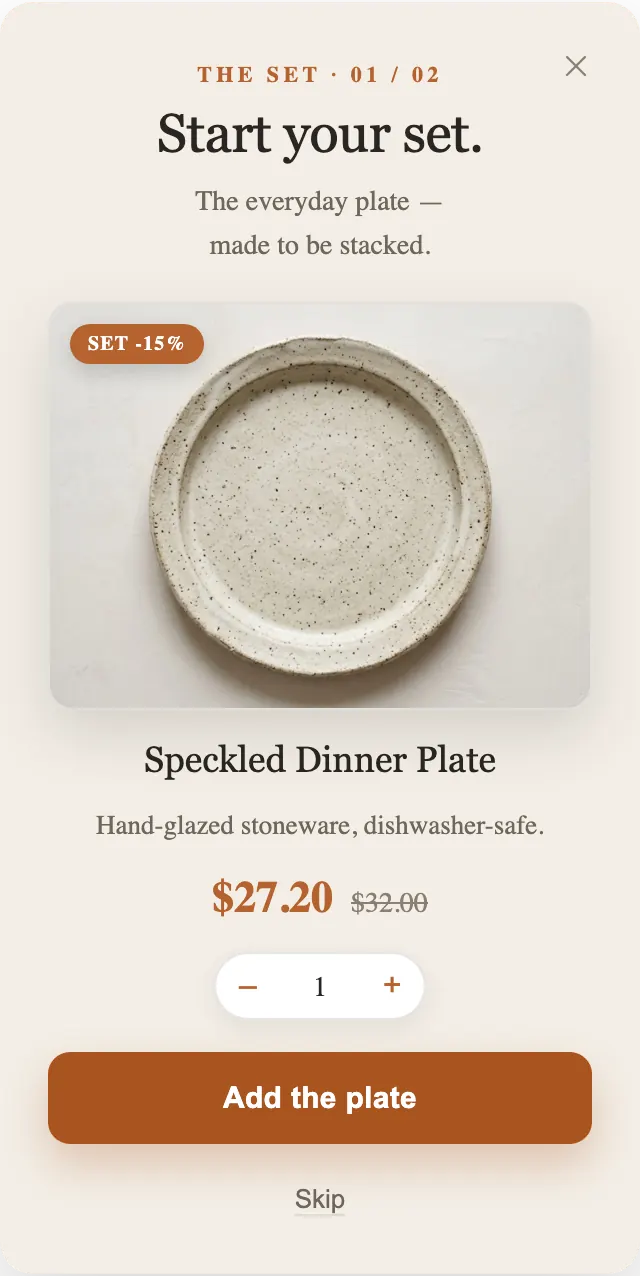
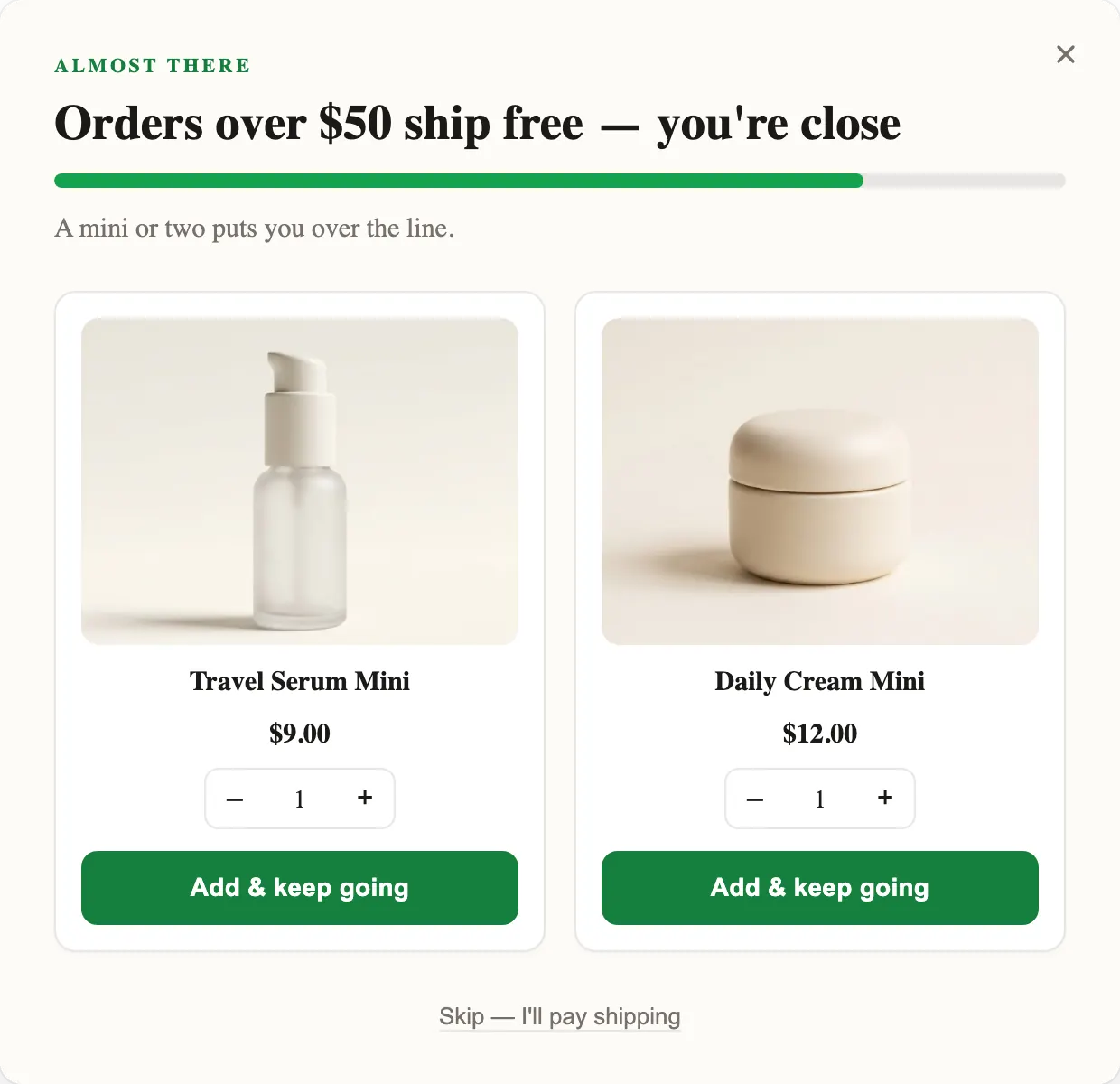
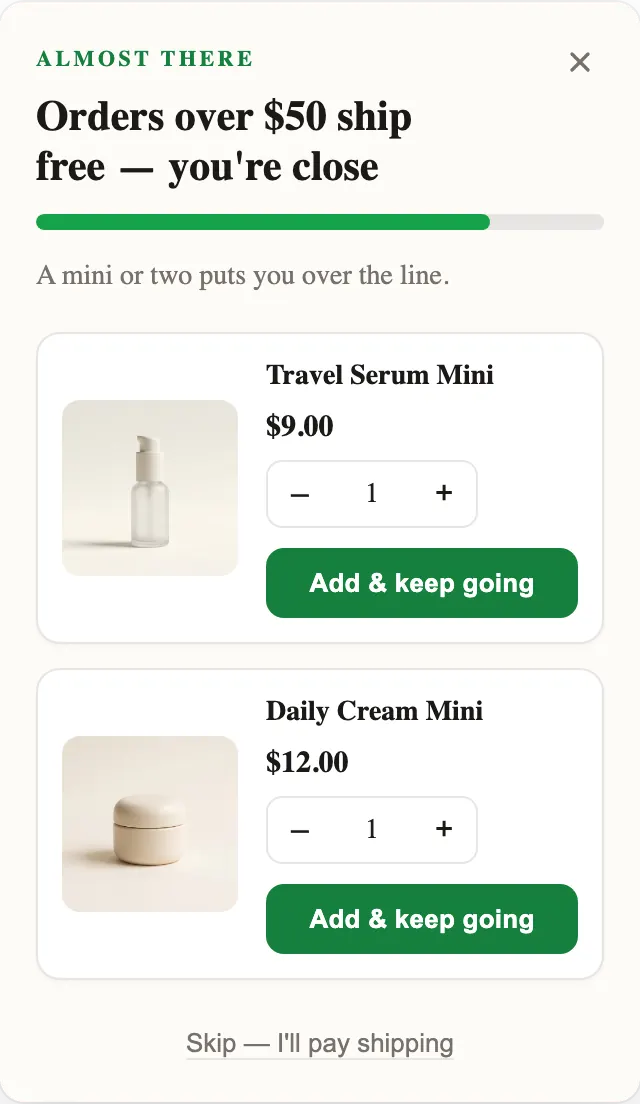
Someone who has just added a bag of coffee has a next question, whether they say it or not: will I run out, do I have the right grinder, is there a mug that goes with it. A good upsell answers that question with one product. The templates above each answer a different one: more of it (Stock-Up Ladder), better than it (Trade Up), what goes with it (Complete the Set), what gets me free shipping (Free Shipping Finisher), and is this a gift (Checkout Companion).
So choose the template by the relationship between the two products, not by its look. If you cannot finish the sentence “people who buy this usually also need…”, an upsell popup is the wrong tool for that product.
When it opens
Five of these templates are set to open after an add to cart, when the shopper has just made a choice and the cart is on their mind. Checkout Companion opens on Start checkout: the cart page, or a click on a checkout button. Every built-in template also opens on a timer 5 seconds after the page loads, so it shows up as soon as you apply it and reload; for an upsell that only makes sense after an add, untick Timer on the Trigger card in the Workflow tab.
In the Shopify app, Free Shipping Finisher and Free Gift Unlocked also bring an Order total condition with a sample amount: 50 for free shipping, 40 for the gift. Change it to your own threshold, in your store’s currency. Conditions need a paid plan and are not checked on a website.
Design: one product, its price, one decision
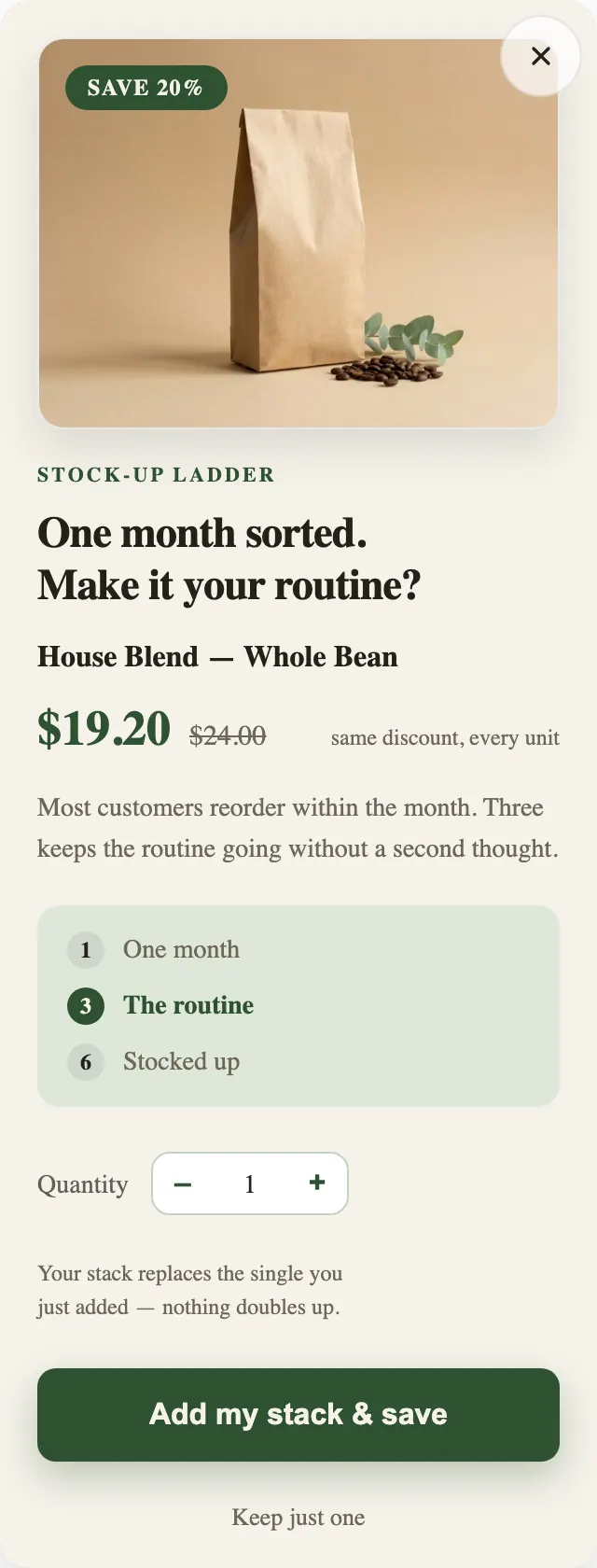
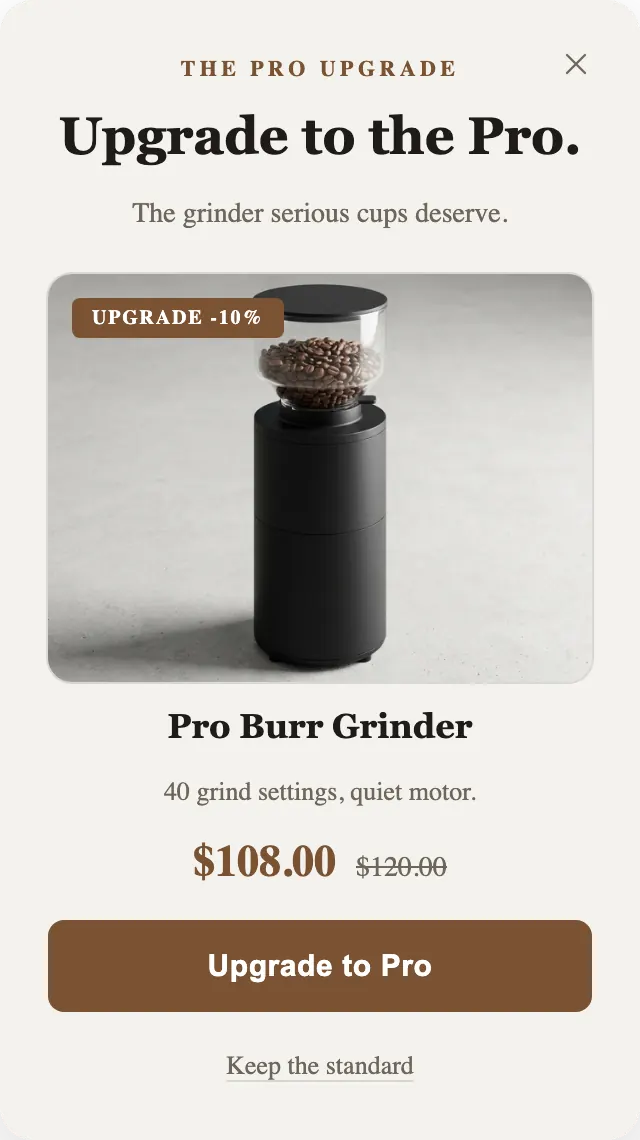
Every example puts the product photo first, then the name, the price with the original struck through where there is a discount, and one button whose label says what happens: “Add my stack & save”, “Upgrade to Pro”, “Add gift wrap”. Under it sits a decline that names the alternative, like “Keep just one” or “Keep the standard”, so saying no feels like a choice and not a loss.
Two-step templates use the second step for a smaller follow-on: the mug after the coffee, the brush after the grinder, the card after the gift wrap. A shopper who declines the first step still moves on, and the Free plan shows only the first step, so put the offer that matters most there.
Copy that respects the cart
- Lead with the reason, not the discount: “One month sorted. Make it your routine?” before “Save 20%”.
- Show the real price. In the Shopify app the name, image and price come from the product, so they match your store.
- Do not borrow a claim you cannot back. Stock-Up Ladder’s sample line, “Most customers reorder within the month”, is there to be replaced with something true of your shop.
- Keep the discount honest and small enough to sustain; a full-price offer like gift wrap works when it is genuinely useful.
Shopify app or website
In the Shopify app you pick the product from your store, the button adds it to the cart, and the offer price is applied at checkout by the “Popup upsell discount”. After the add you choose whether the shopper stays on the page, goes to the cart or goes to checkout.
On a website there is no cart for the popup to add to. You add each product with a form: name, image, price and a Product page URL, and the button opens that page. The popup can still show the offer and a code; the price that counts is the one on your product page. The Add to cart and Start checkout triggers fire on a website once that detection is set up on the Site page.
More on the feature itself: Upsell popups in the PopupGenius Shopify app.